Indicators: Creating Indicators: Details
Overview
Indicators can be created at any level of the log frame up from the Activities level. Select a log frame element to view the indicators for that element, and to add indicators for that element. Indicators are filtered by default according to their level in the log frame hierarchy (output, outcome, goal, etc.).
NOTE: associating an indicator to an activity is a special case, and is described in the article PM: Activities: Associating Indicators to an Activity.
Each indicator features at-a-glance information such as its code, name, unit of measure, time range, and geography level.
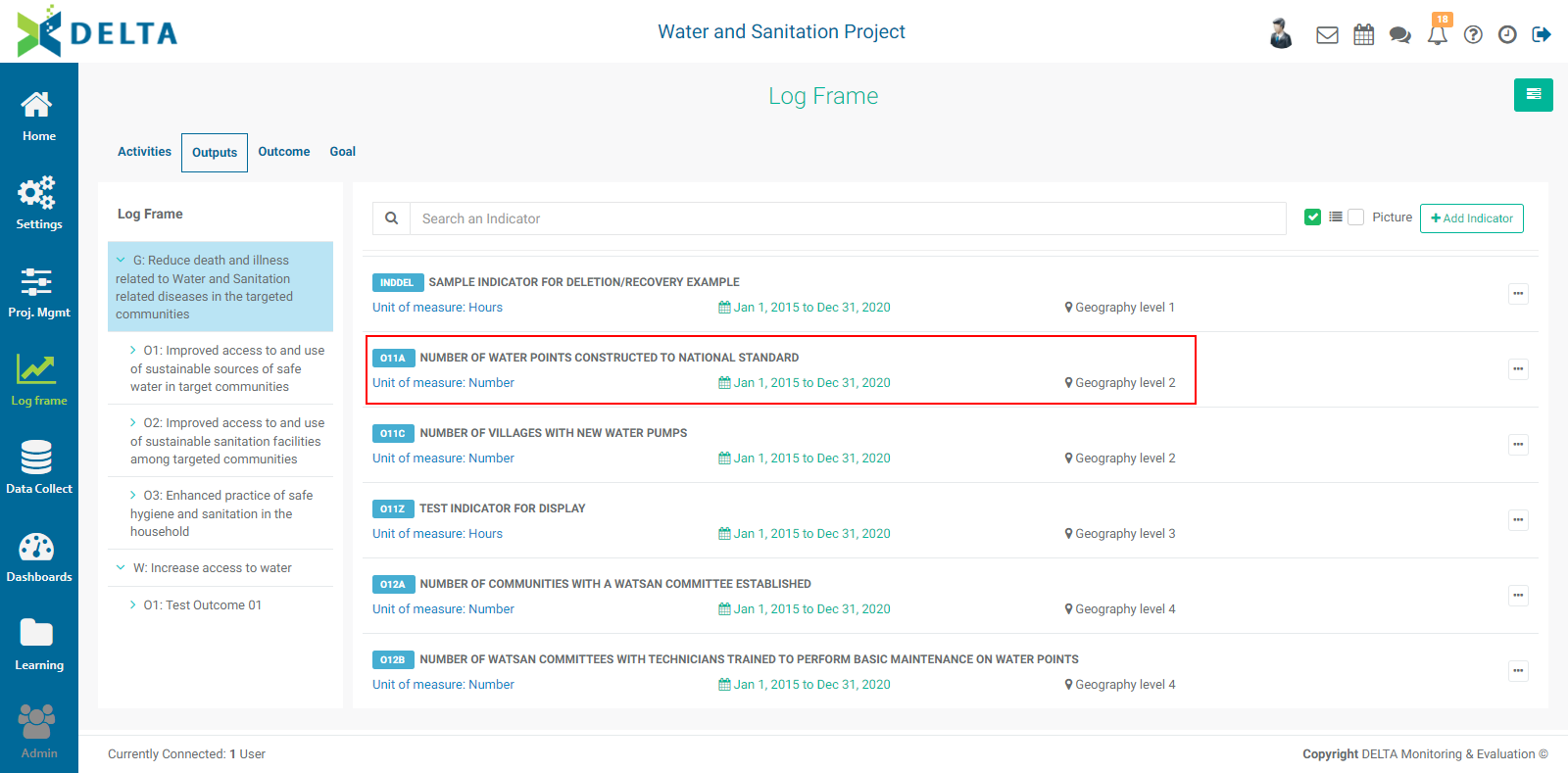
To create a new indicator, click the +Add Indicator button. The first screen contains the essential parameters for the indicator, and it contains three sub tabs: Details, Data Source, and Spatial Visualization.
The Details tab is the basic information about the indicator. Fields with mandatory information are marked with an asterisk. Begin by assigning a code and a name to the indicator. The Data Source and Spatial Visualization tabs as well as the OK button at the bottom right of the screen will be enabled once you enter the code and name.
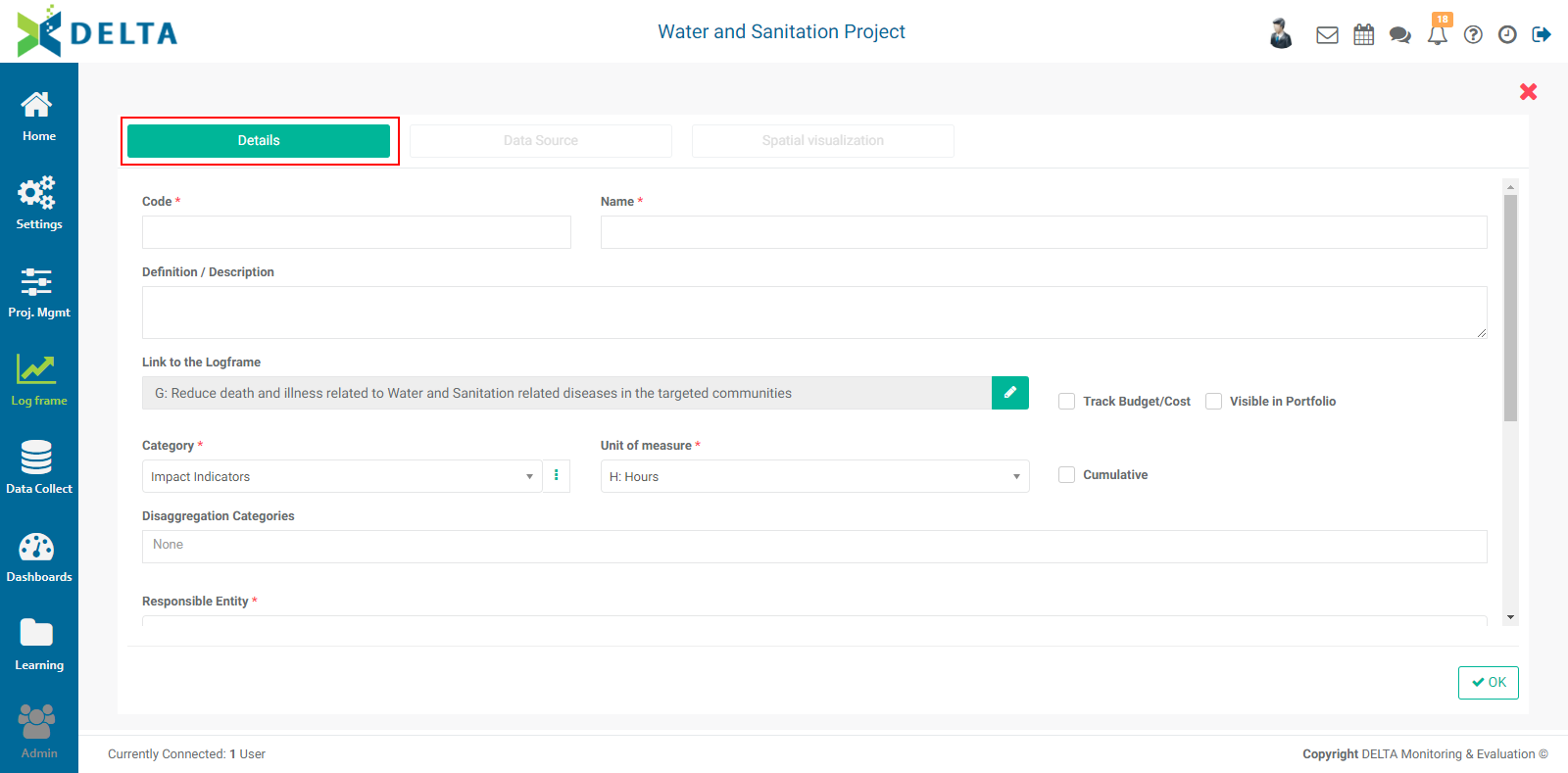
The Definition/Description field is optional, but it's a best practice in general to write out what the indicator is about so it can be referred to at any time.
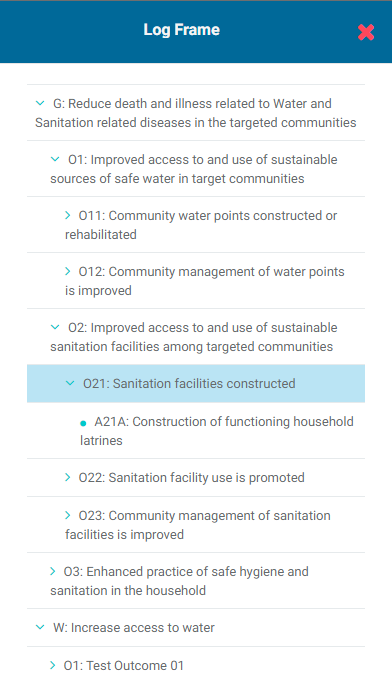
If a log frame element was selected when you created the indicator, that element will be automatically selected in the Details screen Link to the Log Frame field. Verify that it is the log frame element you intended. If it is not, click either inside the field or on the field's Edit icon (pencil) to select the appropriate log frame element from the log frame tree in the popup window.
Check the Track Budget/Cost box if you want the system to track and enable reporting on the indicator's financial data. this can be omitted if you don't perform any financial tracking at the indicator level.
Check the Visible in Portfolio to make this indicator visible at the portfolio level. NOTE: this does not make the indicator a cross-cutting indicator; those are created exclusively at the Portfolio level. Checking Visible in Portfolio simply adds the indicator to the portfolio list for more visibility and ease of access.
Select the appropriate category for the indicator you're creating in the Category pick list.
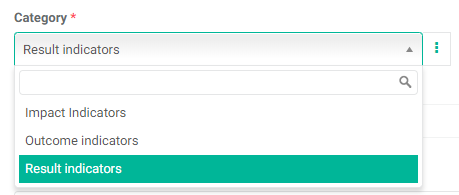
If the category you're looking for does not yet exist, you can create a new one from the Details > Description screen. To add a new category, click the More icon (three vertical dots) at the right end of the field to bring up the KPIs Categories popup window.
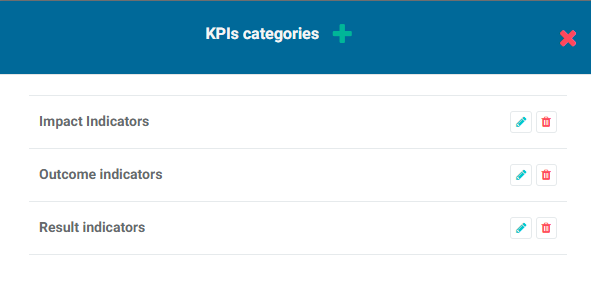
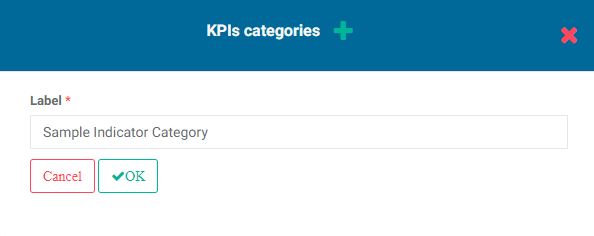
Click the + in the popup window's title bar, and enter the Label for the category. Click OK to save your work.
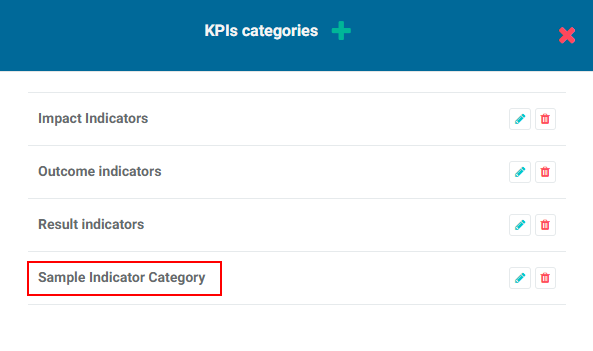
The new KPI Category will appear in the popup window.
To edit a KPI category, click its Edit icon in the KPIs Category popup window, make the necessary changes, and click OK. To delete a category, click its Delete icon in the popup window and confirm the deletion.
By default, all indicators are Simple. Check the Cumulative box to switch the indicator from Simple to Cumulative. Cumulative indicators values never decrease over time.
Enter a Unit of Measure for the indicator. This pick list is populated by the Project Settings: Units you entered in the project's Settings module.
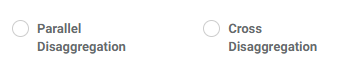
Enter as many Disaggregation Categories as are appropriate for the indicator. If you select more than one, you'll be given the option of choosing between Parallel Disaggregation and Cross Disaggregation. IMPORTANT: be careful selecting which disaggregation type you want to use; you cannot change this selection once you save the indicator.
Select the Responsible Entity for the indicator. This pick list is populated from the Stakeholders you entered in the project's Settings menu.
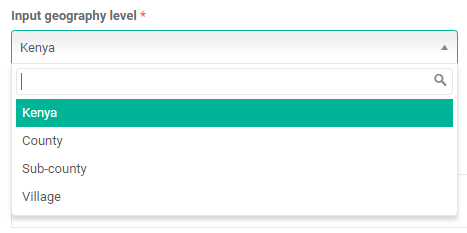
Use the Input Geography Level pick list to associate the indicator to the proper geography level. NOTE: depending on how you set up your Locations at the Portfolio level, your geography levels/divisions will differ from this example.
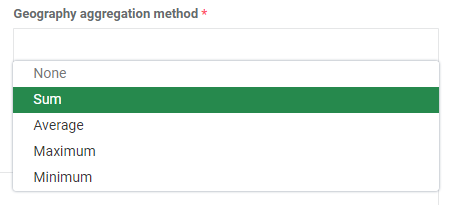
The Geography Aggregation Method pick list offers standard aggregation calculations: Sum, Average, Maximum, and Minimum.
The last three mandatory fields on this screen are Start Date, End Date, and Frequency of Collection. Enter the proper information for each.

The last four fields on this form are optional, but it's good practice to enter some information so it can be referred to later. Typically, this information is contained in an M&E framework manual. The fields are: Target Group, Assumptions, Means of Verification, and Collection Technique.
When the Details screen is complete, you can save your work by clicking the OK button at the bottom and come back to the indicator later, or you can continue entering indicator information. If you choose to save your work, you will be returned to the Log Frame > Indicators screen at the log frame level you previously selected. Your new indicator will appear on the screen.
Previous: Indicators: Indicators Screen | Next: Indicators: Creating Indicators: Data Source