Project Home Page: Indicator Dashboard
The Project Indicator Dashboard regroups all the detailed data for each project indicator. Click on the Indicator Dashboard at the top of the screen to go to that screen.
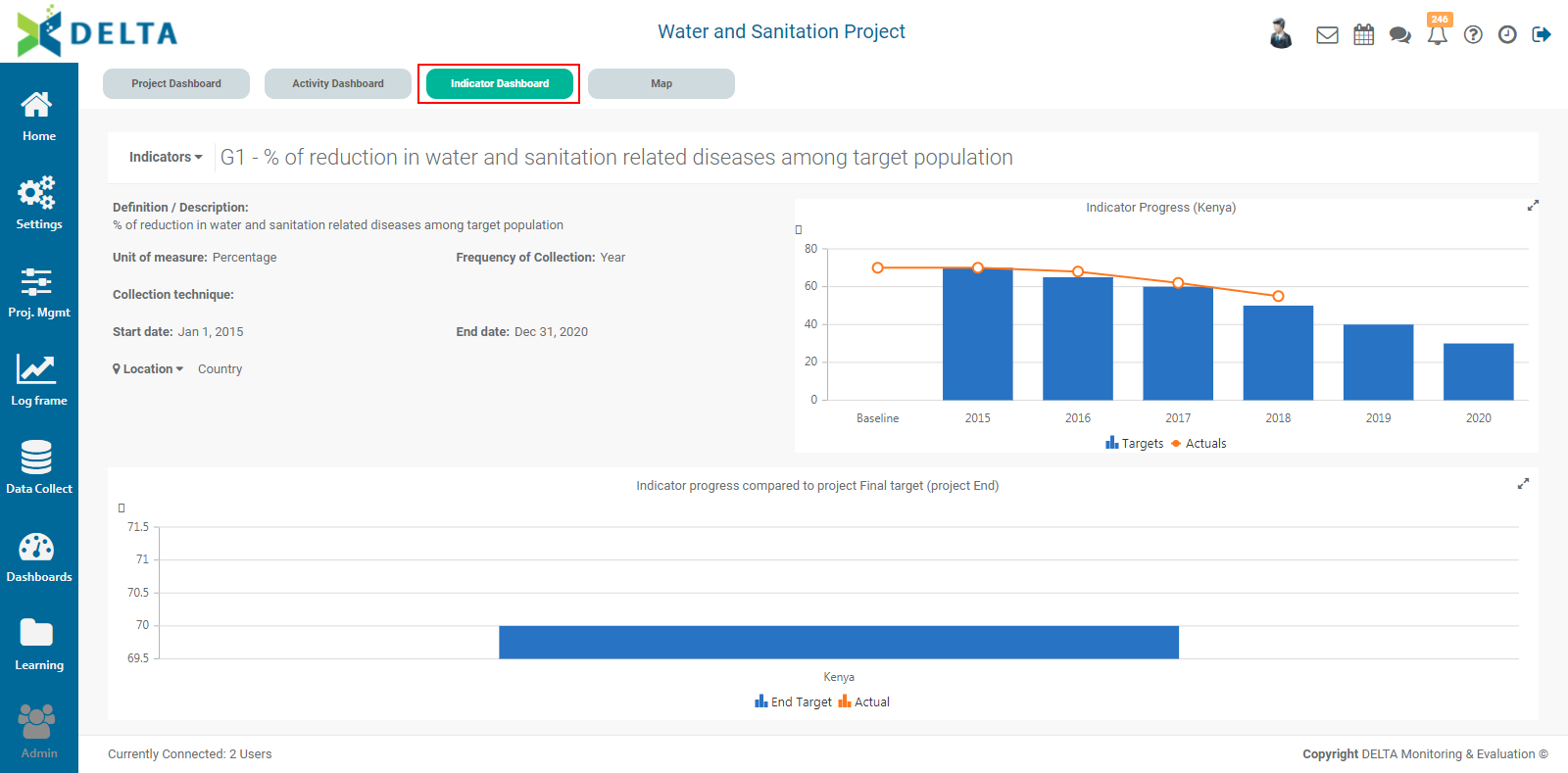
Select the desired indicator from the pick list.
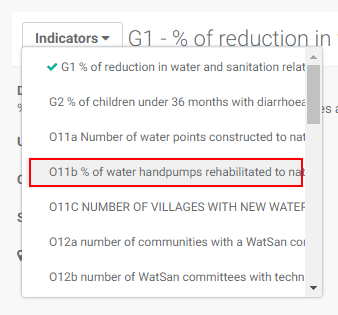
The map and graphs will update automatically with the selected indicator's data and information, including an at-a-glance summary of how the indicator was set up.
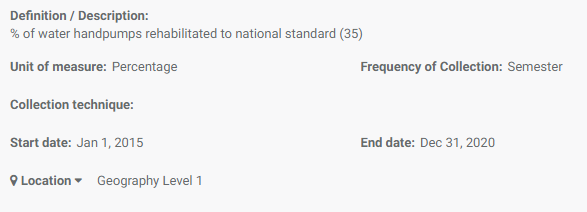
The default view is the top geography level. Select another level to drill down into location details for the indicator.
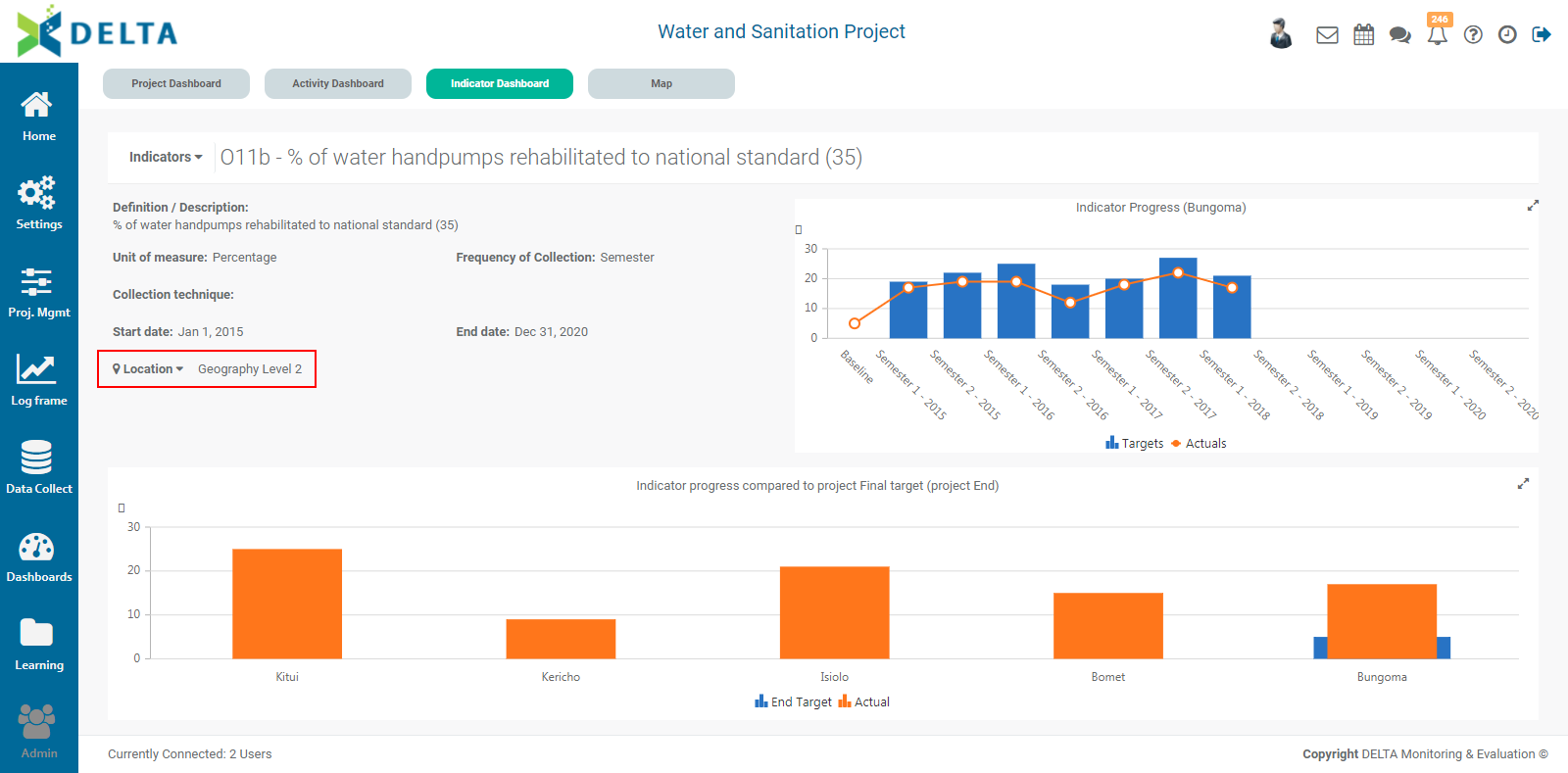
The graph at the bottom of the screen shows the indicator progress for each geography level location for which there exists indicator performance data. The graph at top right shows the details for a specific location. To view another location's details, click it in the bottom graph. The top right graph will refresh to show the indicator performance details for the selected location.
NOTE: depending on the geography level associated with the particular indicator, some geography levels may not be available. For example, an indicator associated with Level 2 of a locations list will not show any data for lower levels of the locations list.
Mousing over any part of a graph will trigger a tool tip which displays the data used for that part of the graph.
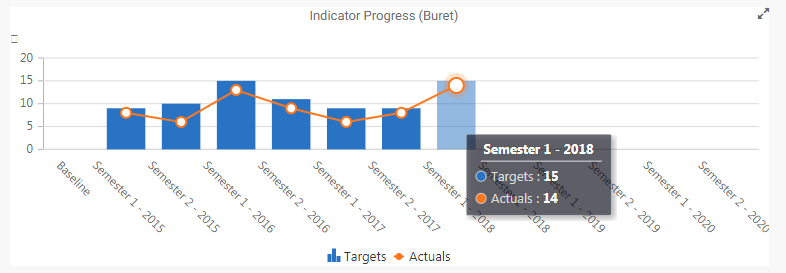
Click the double arrow at the top right corner of either graph to expand it to fullscreen. Press Escape on your keyboard to exit the fullscreen view.
Previous: Project Home Page: Activity Dashboard | Next: Project Home Page: Map Dashboard