PM: Staff Reports
The Staff Reports screen allows you to view and create categories or reports, set the periodicity of a document (for example, an annual report), associate alerts with document deadlines, assign the document to a user, import report templates, and track report assignments.
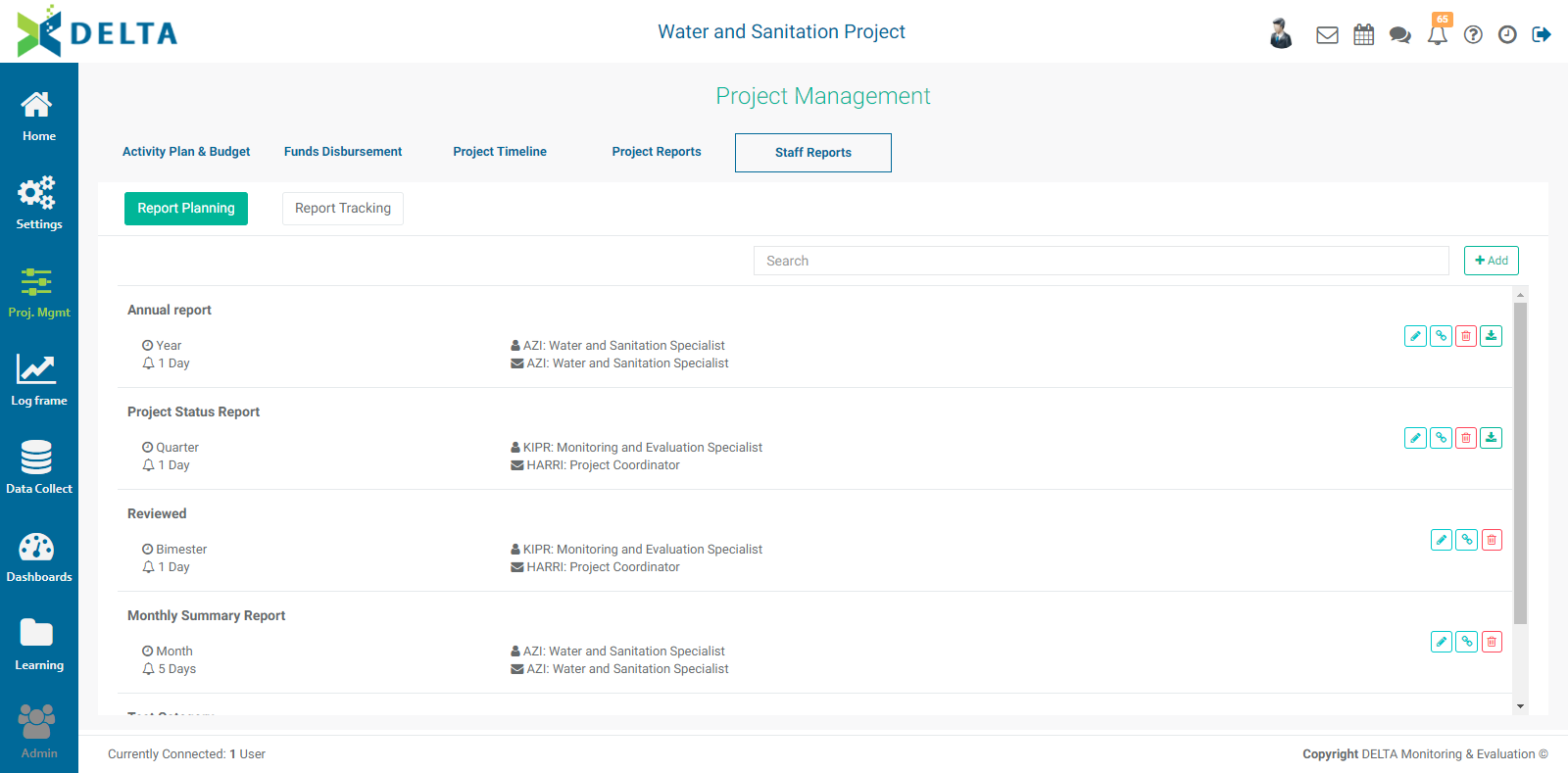
To add a report, click the +Add button at upper right to bring up the category screen.
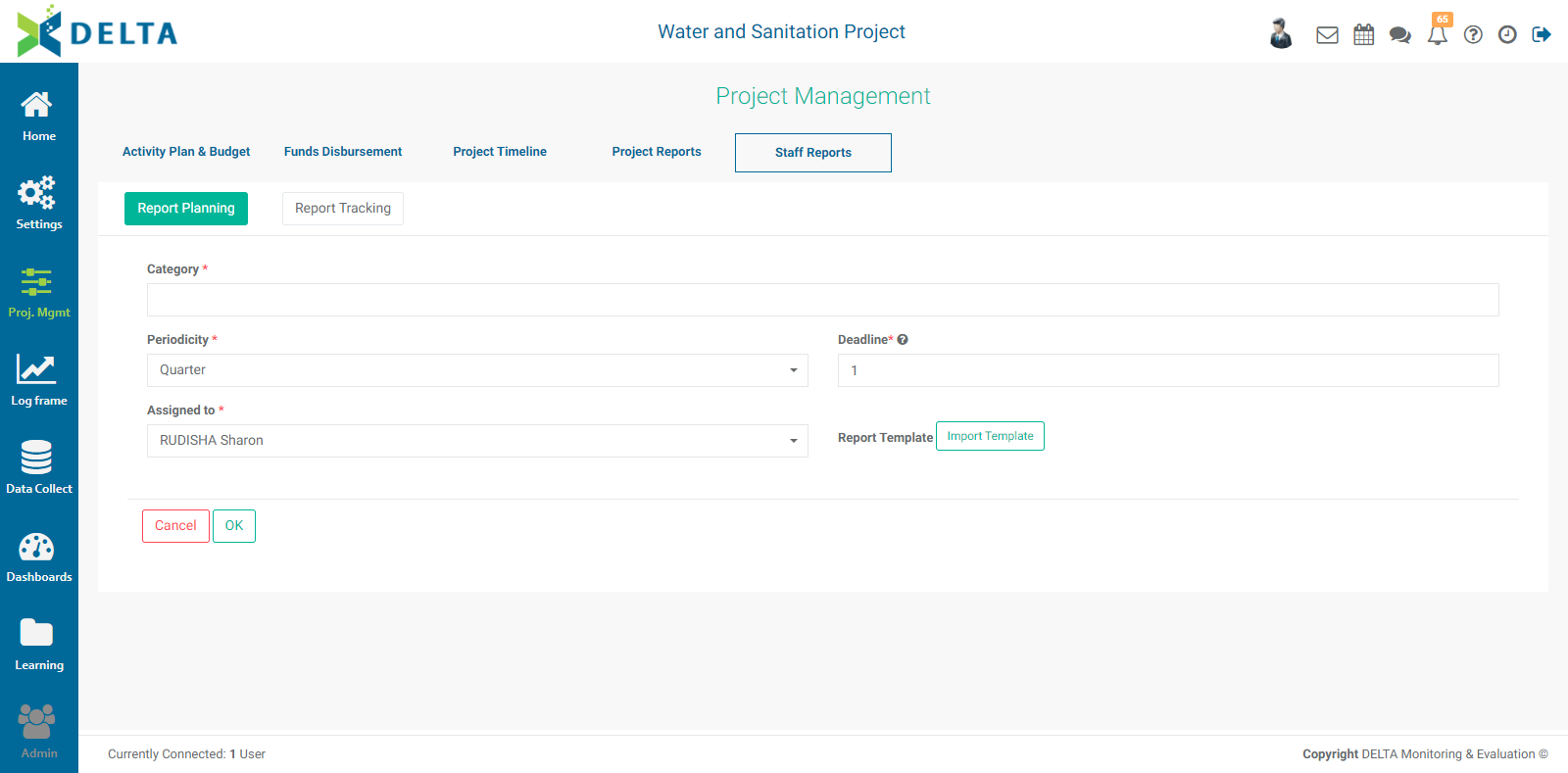
Enter the category name, the periodicity (how often the document is to be produced), and the deadline (number of days before the due date to issue an alert). Select an actor from the Assigned To pick list, and click OK when you're done to save your work and return to the Reports screen. All fields are mandatory.
Assigning a document to an actor will result in an alert appearing in their Notifications icon, the alert bell icon in the main toolbar at top right.
You can also import a report template is one is available. Click the Import Template button to associate a template to this document category.
You can edit any document in the Document Categories list by clicking the pencil icon in its toolbar. Initiate a workflow by clicking the chainlink icon, and delete the category by clicking its trashcan icon. Document categories that contain an associated template will also feature a download icon.
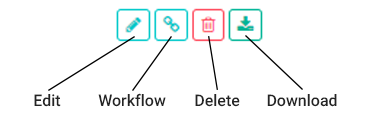
To initiate a workflow for a document, click on the Workflow icon. Click on the +Add button to select the actors in the workflow.
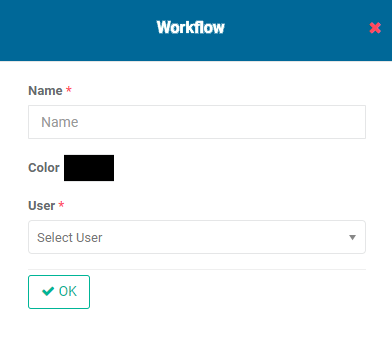
Enter the name of the workflow, and assign a user to it. Editing the color is optional, but it can serve as a marker for the person who has been assigned to it, see below. Click OK when you're done.
Each part of the workflow appears in its own tile. Create as many steps as are needed to complete the workflow for the current document category.
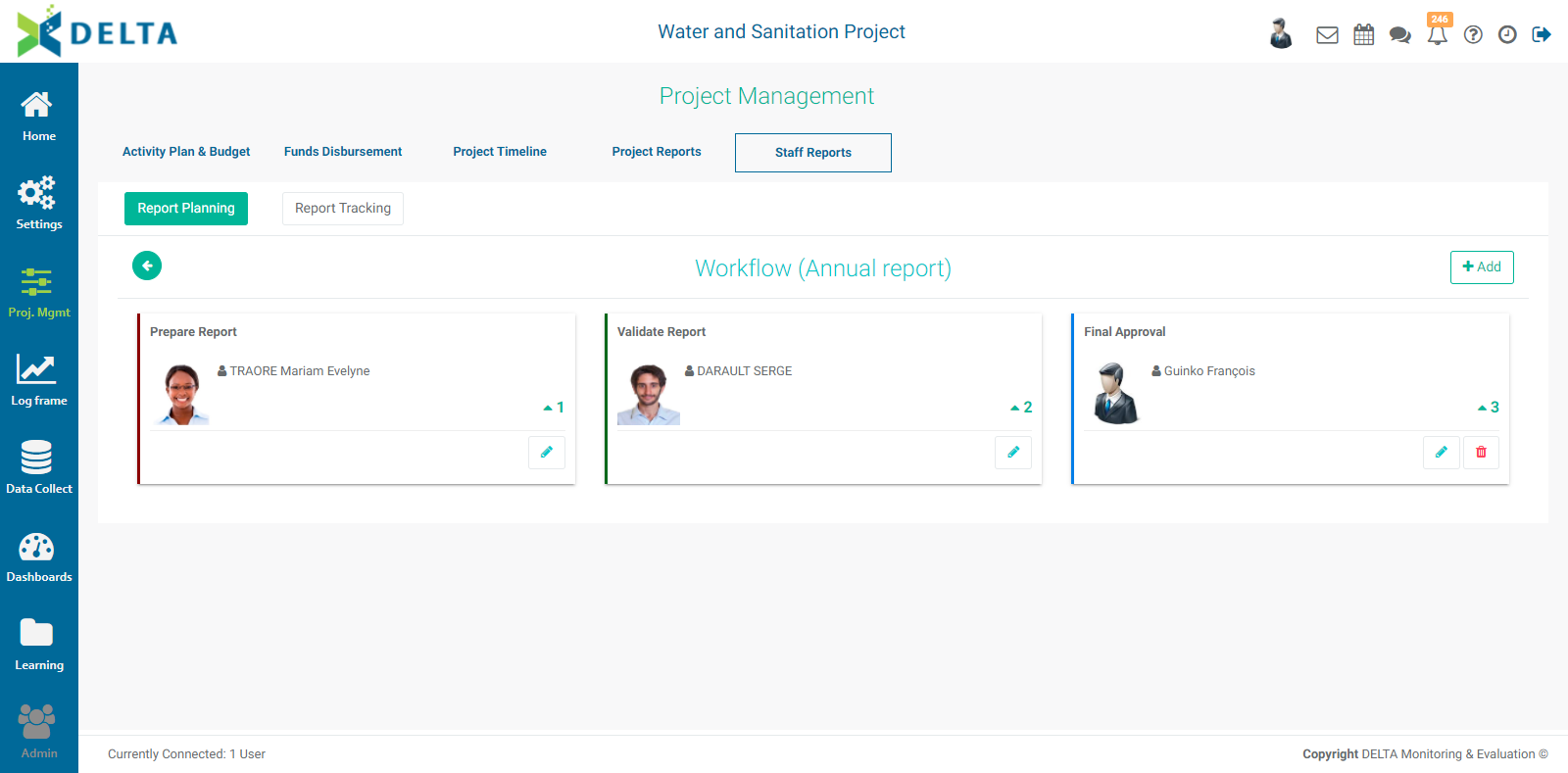
As is the case with assigning documents, assigning users to a workflow will activate the Notification icon at top right of the screen in the main toolbar. Note that if a user is assigned to a quarterly report, for example, and the project timeline is two years, all eight notifications will appear in their Notifications list.
The Report Tracking screen is an at-a-glance view of all scheduled and unscheduled documents in the project pipeline, sorted according to the document categories created above. You can use the filter at the top to search documents by date range. You can also filter the document list by Scheduled status.
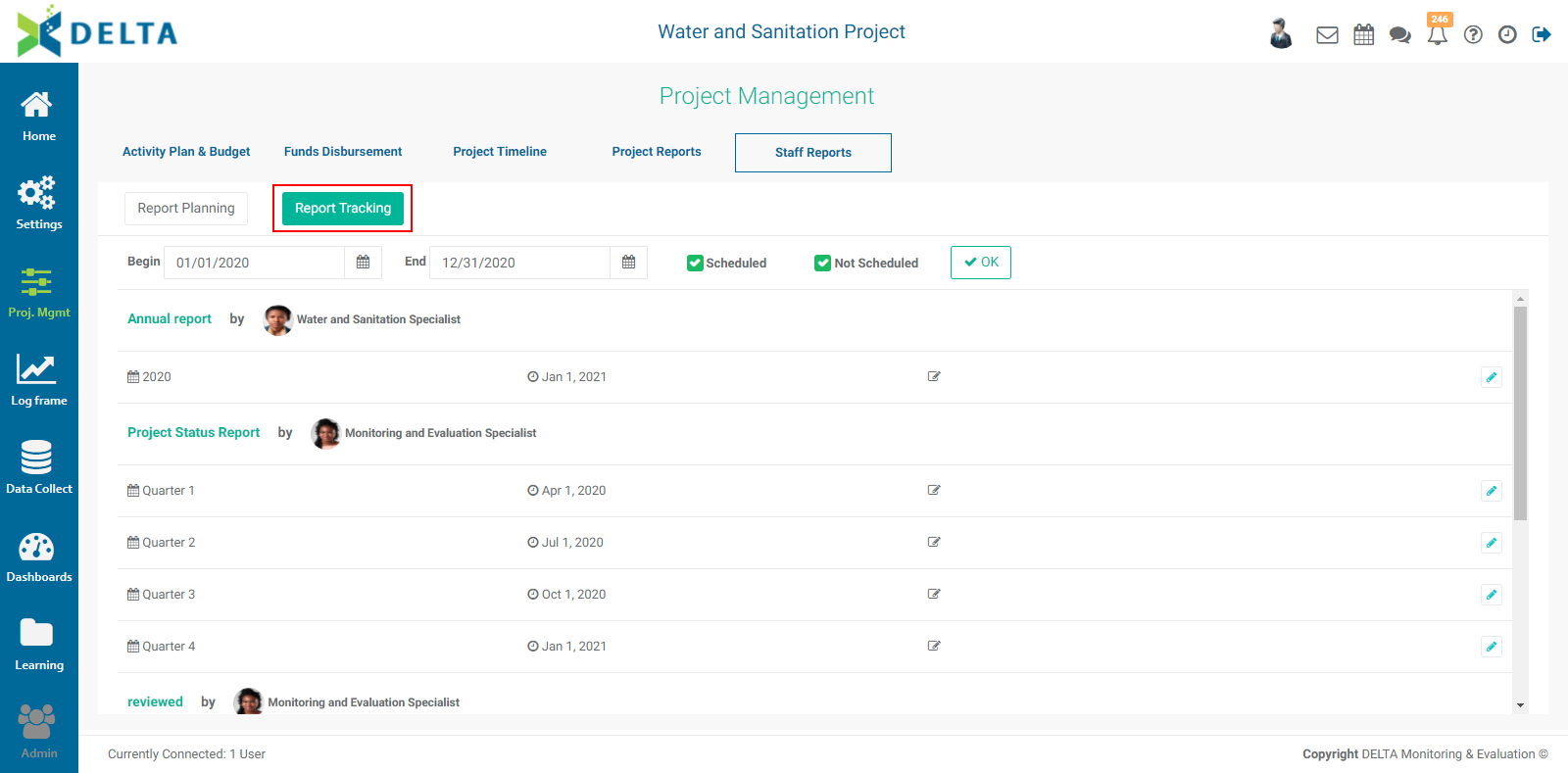
You can search by date range and status. Click OK to apply your selections. The list will be filtered according to the options you selected.
To