Main Toolbar: Calendar/Agenda
The Calendar/Agenda allows users to share important project dates. Click the icon to see project events.

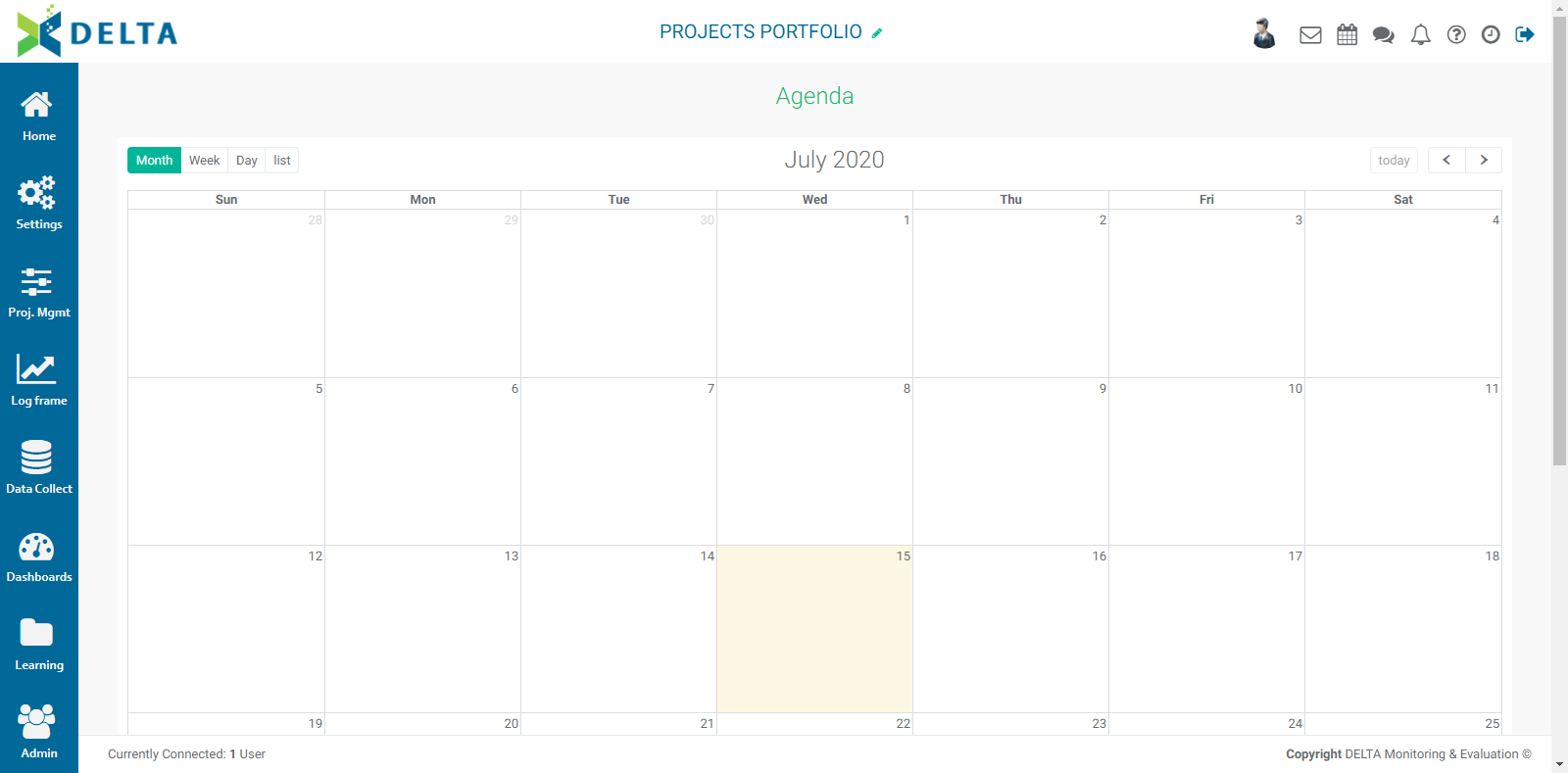
To add an event or a task to the calendar, double-click on the day, then enter the relevant information in the popup window.
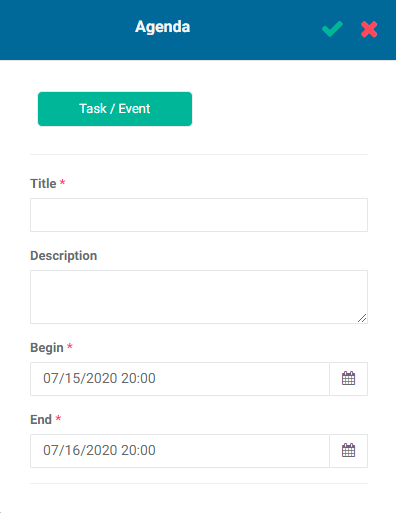
Click in the Begin and End fields to set the start and end date and time of the event. Select the date. Once you select the date, the hours menu appears.
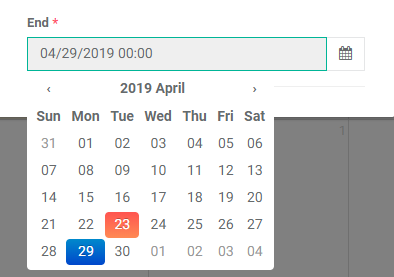
Once you select the hour, the minutes menu appears. Select minutes for the event or task.
As soon as you enter a title for the event/task, the Share With tab appears next to the Task/Event tab. Click on the tab to bring up a list of project recipients, and select the ones you want to notify of the event or task.
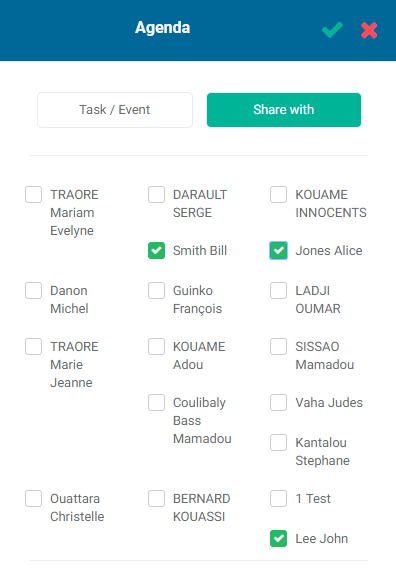
Click the checkmark in the popup window title bar to save your changes. The task or event appears in the calendar grid.
Mouse over the event to view its detailed description. Double-click the event to edit it.
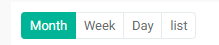
Use the tabs at the top left of the calendar to change the view to Month, Week, Day, or List.
Use the arrows at top right of the calendar to navigate to previous or future months. Click the Today button to quickly return to the current day.
NOTE: As is the case with My Messages, calendar events created in a project will only be visible at the project level. Similarly, calendar items created at the Portfolio level will only appear at that level.
Previous: Main Toolbar: My Messages | Next: Main Toolbar: Chatroom