Portfolio: Project Tiles and Project List Views
Delta now features both a Tile view and a List view for projects in the portfolio. Each tile or list item represents a project.
In the Tile View, each project's tile shows the project Code, project Title, time range, and percentage of completion.
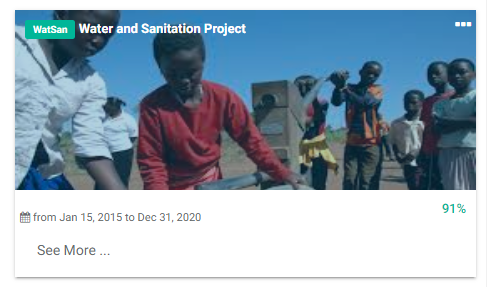
The project tile also features a More icon, denoted by three dots at the upper right corner, and a See More link at bottom left. The More icon in Delta is a contextual menu which changes depending on the item on which it appears. On a project tile, the menu allows users to add an image to a tile, edit the project, view a project summary, and delete the project. NOTE: once there is data in a project, deleting that project will require an intervention from technical support.
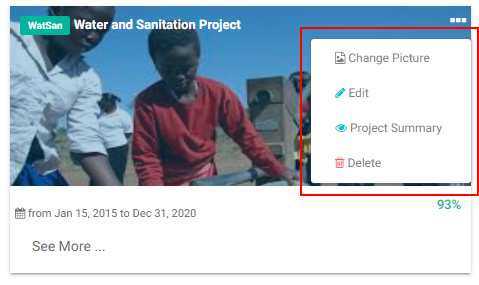
To add or change the picture for a project tile, select Change Picture from the More menu, navigate to the desired image file, and double-click it to add it.
To edit a project, select Edit from the More menu, and edit the project parameters.
The See More link at the bottom left of the project tile opens a project summary page, with project details such as time frame, disbursement data, and indicator data.
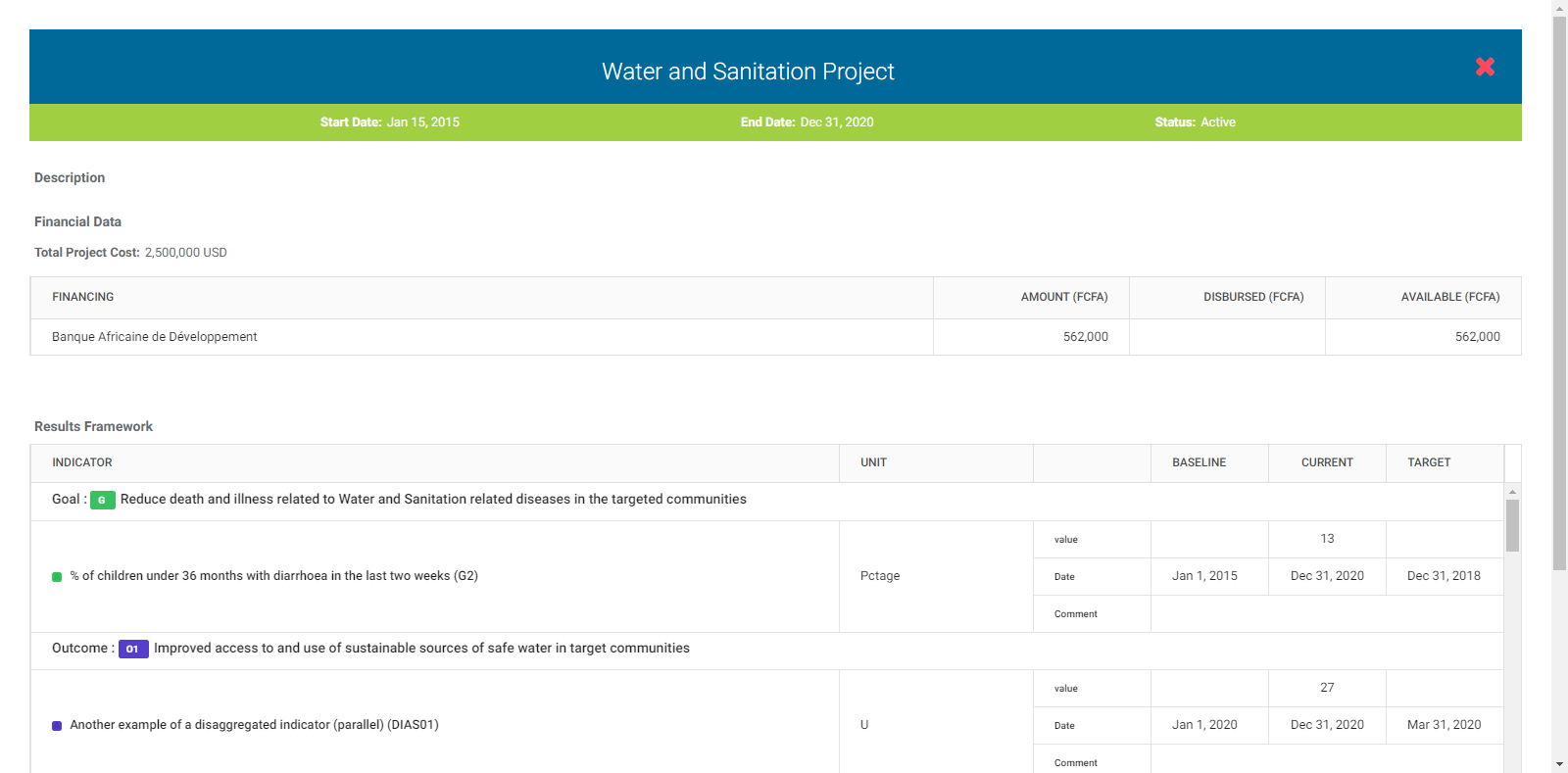
Click the X at top right to close the project summary screen and return to the Portfolio page.
To filter by Locations, click the arrow toggle at the top left to bring up a list of all the locations in the portfolio.

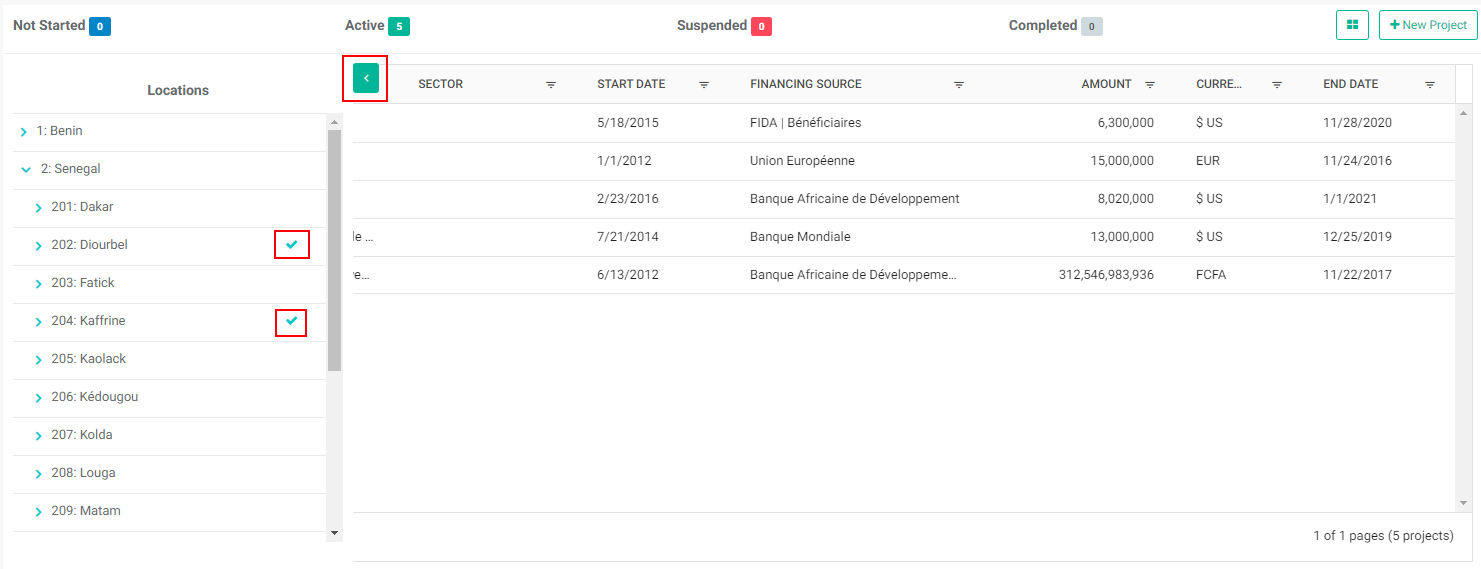
Select a location from the list to narrow down the project tile display to only the selected locations. Use the carets (> and v) to expand and collapse the Locations tree. To select more than one location, click it once. Active selections will have a checkmark next to them. To reset the locations, click all the selected locations to remove the checkmarks.
The List View displays all the projects in the portfolio as an interactive table. Click the toggle button to the left of the +New Project button to switch between Tile and List views.
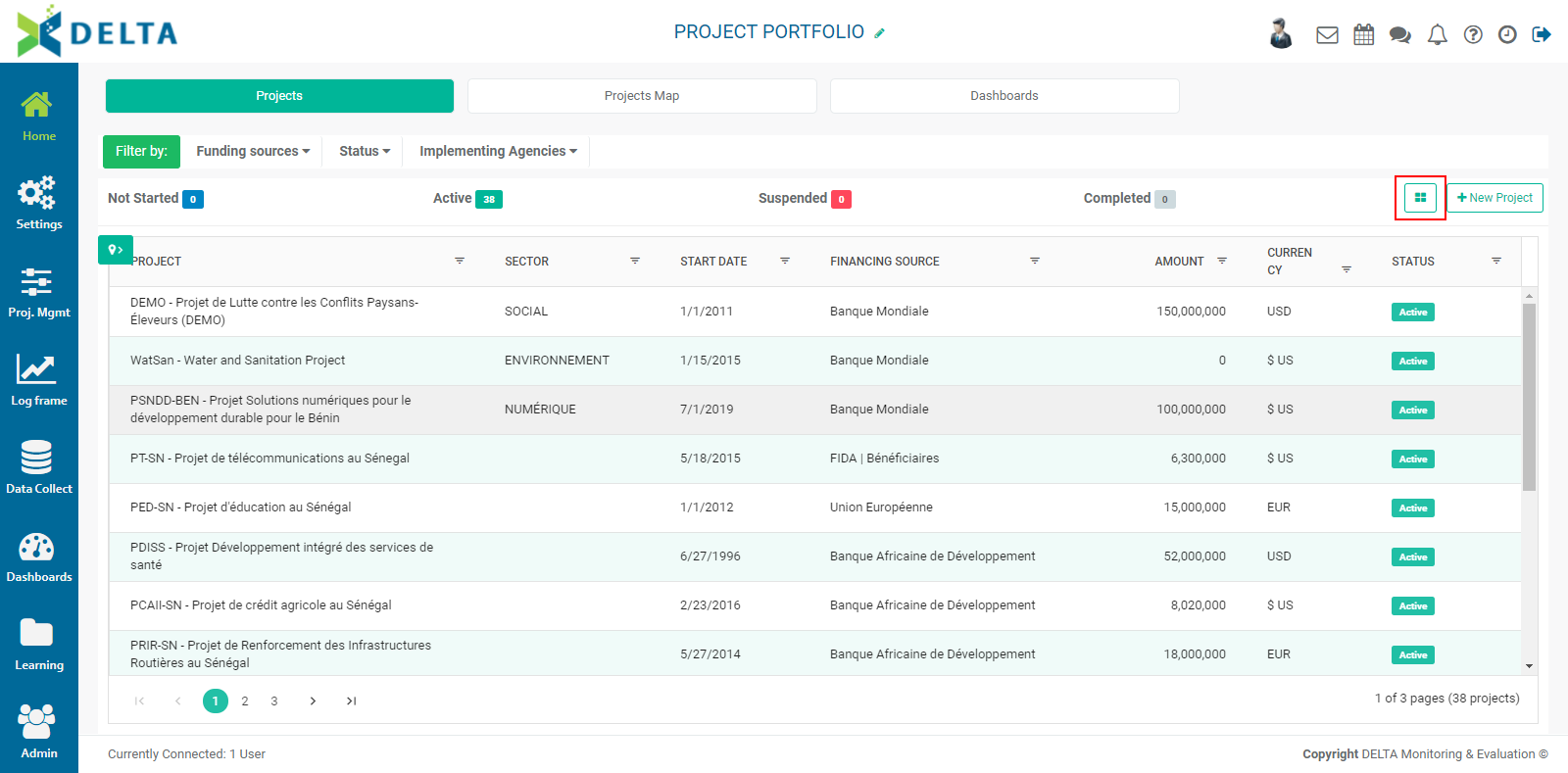
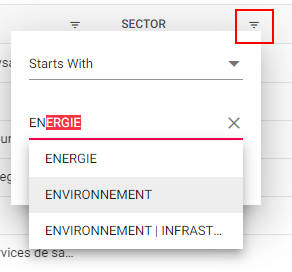
Each line item in the table is a project. Use the filters at the top of each column to narrow down the list.
To filter by Locations, click the arrow toggle at the top left to bring up a list of all the locations in the portfolio.
Select a location from the list to narrow down the project tile display to only the selected locations. Use the carets (> and v) to expand and collapse the Locations tree. To select more than one location, click it once. Active selections will have a checkmark next to them. To reset the locations, click all the selected locations to remove the checkmarks.
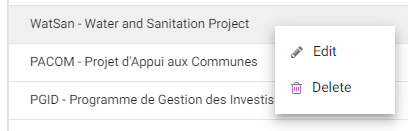
To edit or delete a project in List view, right-click on that project's name in the list. NOTE: once there is data in a project, deleting that project will require an intervention from technical support.
Previous: Portfolio: Projects Dashboards View | Next: Main Toolbar: My Messages