Dashboards Module
Overview
Delta contains a large number of built-in dashboards, and also features a custom dashboard functionality. The Dashboards Module specifically regroups custom dashboards, which are built using individual reports as spare parts. Custom reports can be created for Activities, Indicators, and Forms.
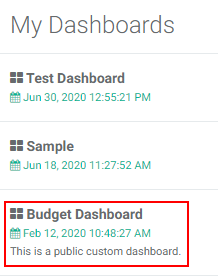
Custom Dashboards are sorted into two lists: My Dashboards (the dashboards you created), and Others (all dashboards created by other users). At the top of the two lists are shortcuts to the built-in project dashboards: Project, Activity, and Indicator.
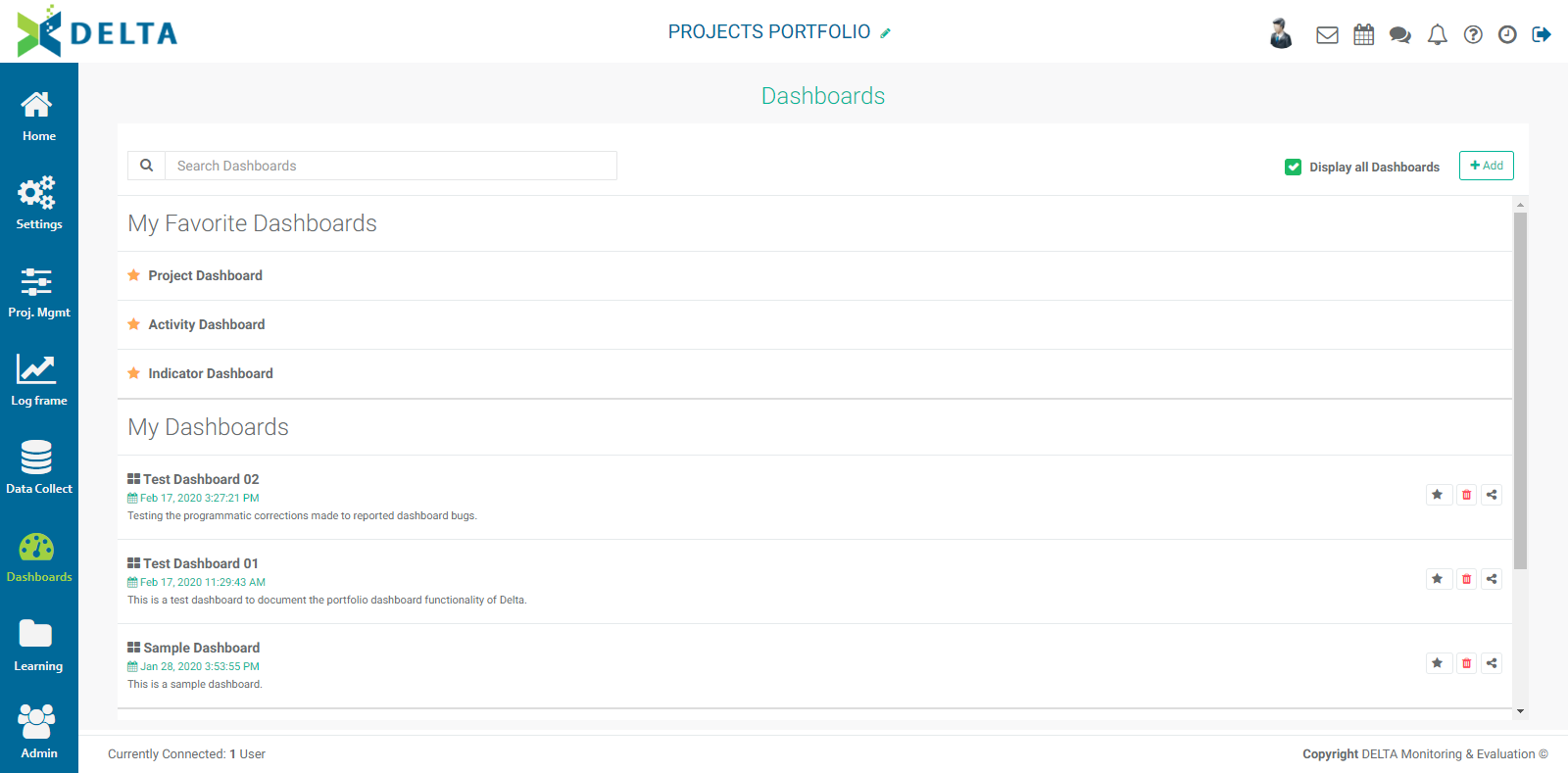
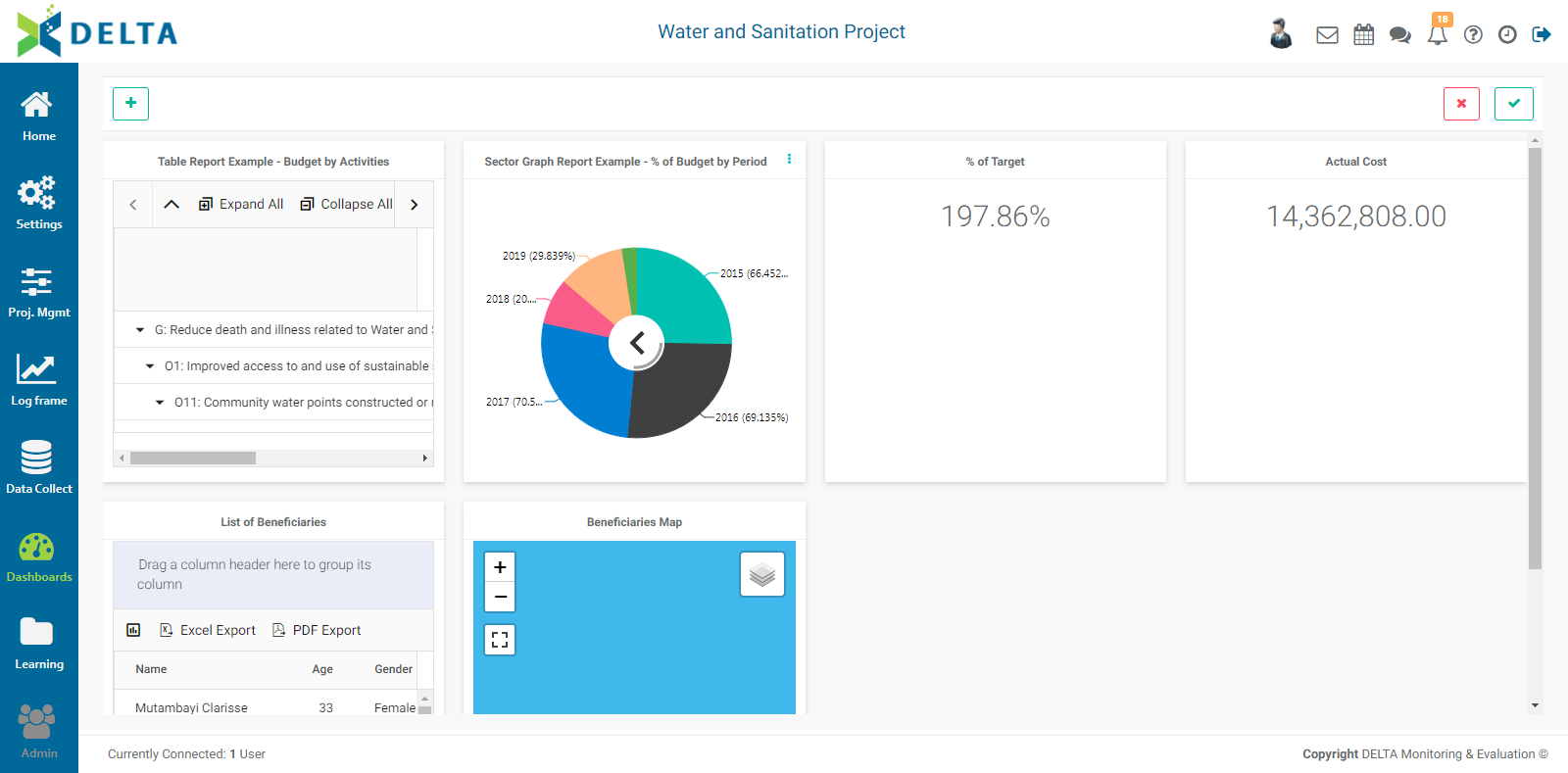
NOTE: dashboards created at the Portfolio level can contain any of the reports in the system, sorted by project and type. Dashboards created at the project level can only contain reports associated to that project, sorted by type. The example below is a project custom dashboard.
To add a new dashboard, click the +Add button to bring up the dashboard component selection pick list.
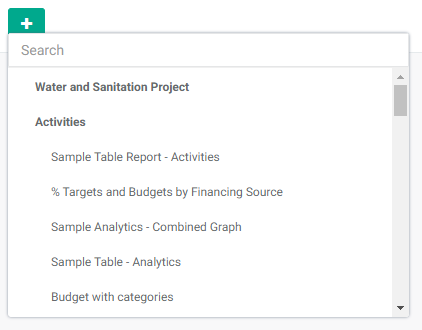
Click the names of the reports you want to add to the dashboard. Selected reports will display a checkmark. When you're done, click OK at the top of the pick list. The dashboard layout will appear, with each selected report in its own panel.
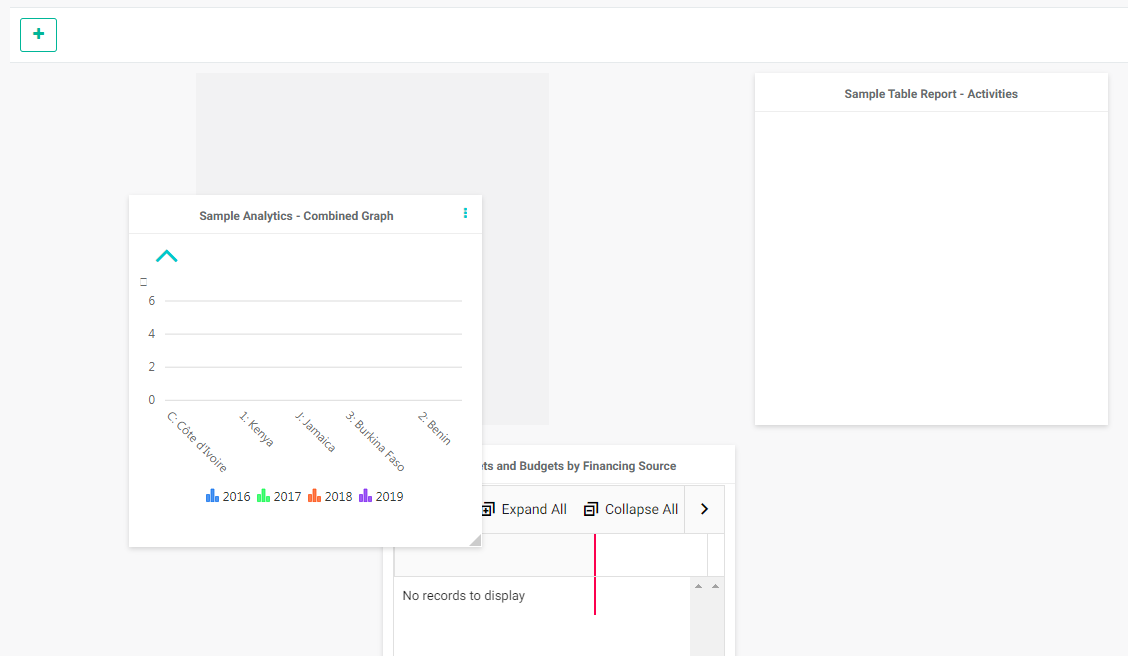
You can move and resize each panel. To move a panel, click, hold, and drag its title bar. To resize a panel, mouse over its edges or corners until the cursor turns into a double-headed arrow, and click, hold and drag until the panel reaches the desired size. Other panels will slide away to make space, and the screen will show a slightly darker color where the footprint of the panel will land.
When you're satisfied with your layout,click the checkmark at top right. Enter a title, and a description (optional). Click OK to save your work and return to the dashboard screen. The new dashboard appears in your list. Note that if a description was entered, it appears under the name of the dashboard.
Note that you can export each report from any dashboard on which it appears, except widgets. Click the Excel or the Word icon to export the corresponding report.
Click the Back arrow at top right to get back to the dashboard list.
Each dashboard in the list features three icons: Star, Delete, and Share. Note that only dashboards feature this toolbar; other items are custom reports and can only be edited/deleted/shared from their Custom Reports screen (Activities, Indicators, or Forms).
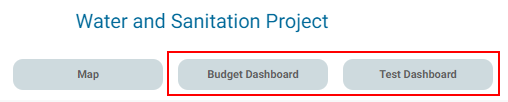
The star denotes whether a dashboard is available from the project home page. Click the star to activate it (yellow is active). When you go back to the project home page, the starred dashboard will appear next to the default views (Project Dashboard and Map).
Click on a dashboard's Delete icon to remove it. Deleting a dashboard does not delete the reports it contains.
To edit a dashboard, open it, then click the Edit icon at top right of the screen.
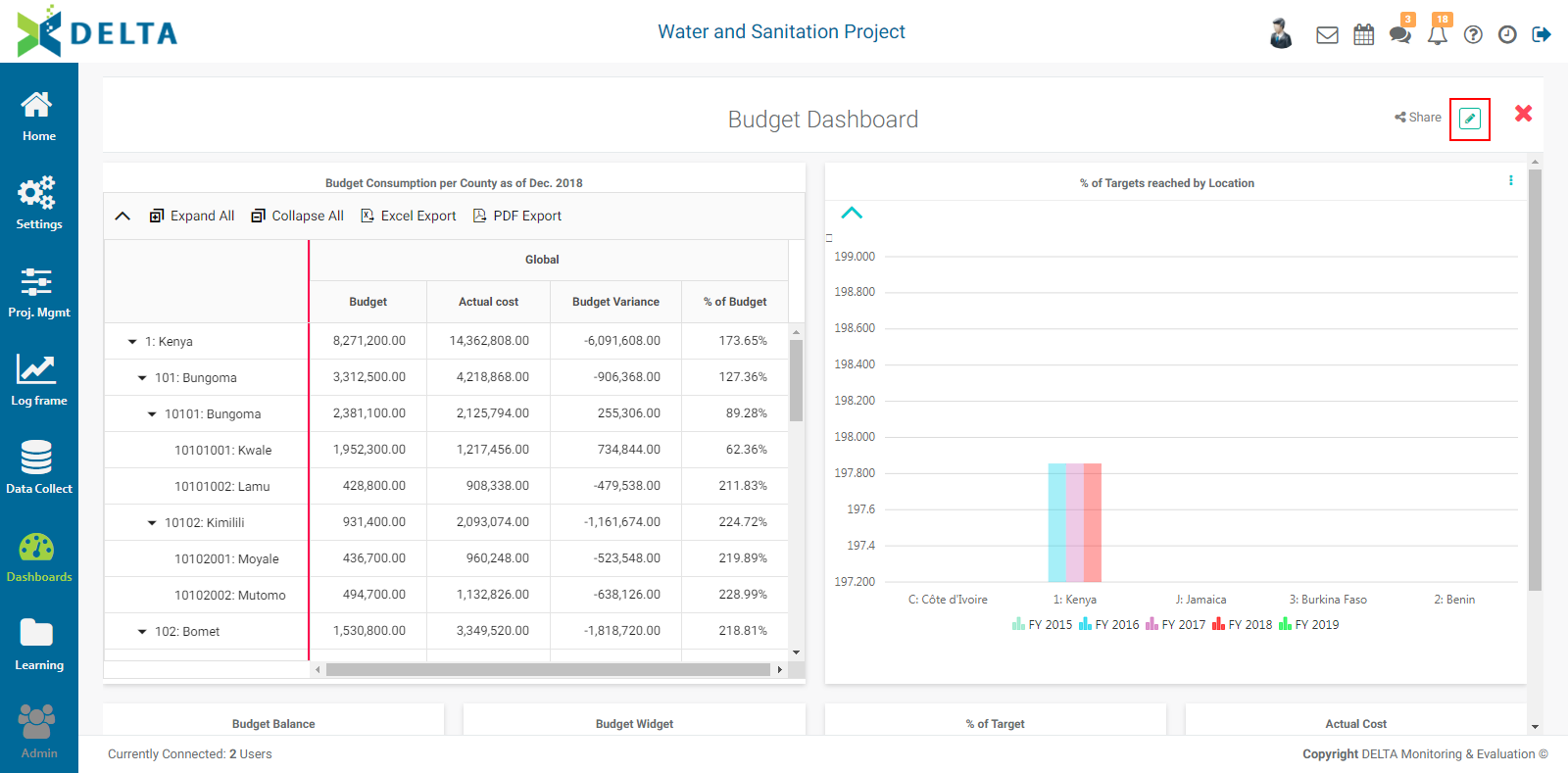
To change which reports are displayed in the dashboard, click the + at top left, and make your selections as described above. Drag each report's panel to rearrange the dashboard layout, resize the panels as needed, and click the checkmark at top right to save your work. This will bring up the Dashboards popup window.
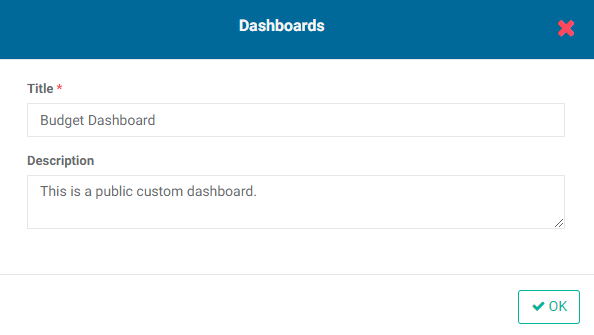
Change the title and description as needed, and click OK when you're done to save your work and return to the Dashboard screen. The revised dashboard will appear on the screen. NOTE: Changing the name or description of an existing dashboard does not save another version; it simply overwrites the previous dashboard configuration.
To share a dashboard, click its Share icon, write a short message, select the recipients, and click OK. The recipients will see a notification in their project main toolbar. NOTE: The Share icon is also available when the dashboard is open and in Edit mode.
Previous: Forms Analytics: Using Forms Analytics as Inputs to Indicators | Next: Learning Module: Documents