Indicators: Other Settings
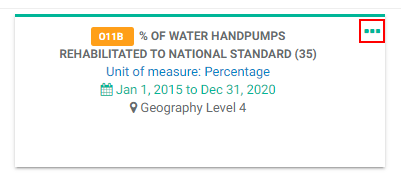
A few other settings are available for indicators. They are located in an indicator's More menu, which is at the end of the indicator's line item in List view, and on an indicator's tile in the upper right corner in Tile view.

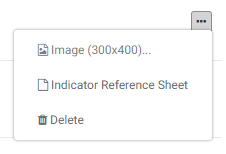
The menu contains three items: Image, Indicator Reference Sheet, and Delete.
The Image option allows you to associate an image with the indicator. The selected image is toggled using the Picture checkbox at upper right. The image will appear on the indicator tile in Tile view, on its line item in List view, and as part of its header at top center when it's open.
To add an image to an indicator, select Image from the indicator's More menu, navigate to the location of the image you want to use on your local or network drive, click on the image to select it, and click OK or press Enter on your keyboard. The image will be associated with the indicator. If you can't see the image, make sure that the Picture checkbox is checked.
The Indicator Reference Sheet assembles the most important information for a given indicator, including a timeline graph of the indicator's performance. Click the Print button at top right to print a copy of the reference sheet.
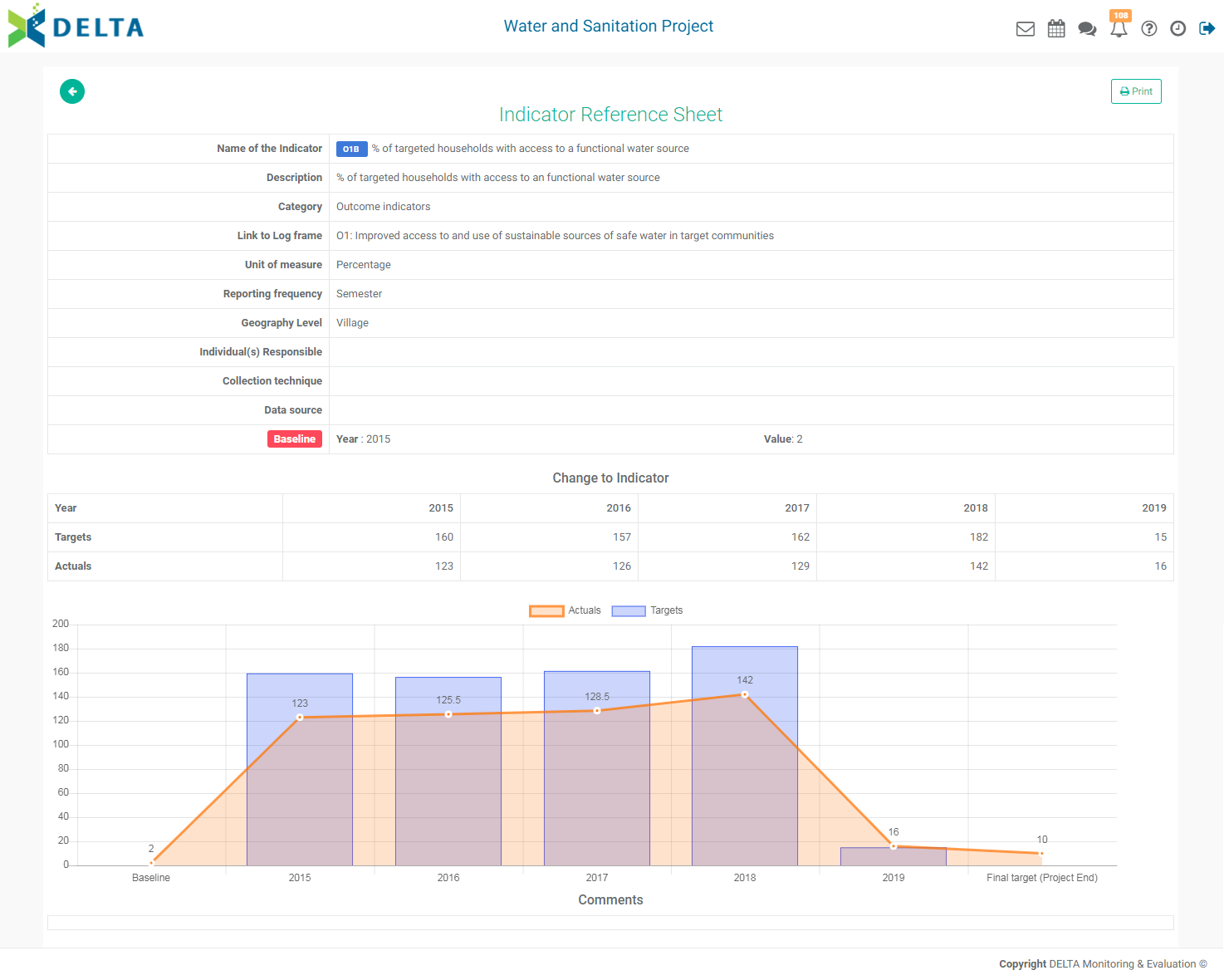
This screen is populated in part from planned and tracked data entered into the indicator, so there will be very little information at first, most of which will originate from the Details tab information entered earlier.
If comments were added to the indicator, they will appear in a Comments section below the graph.
Select Delete from the More menu to delete the indicator. NOTE: if the indicator contains data, the system will prevent deletion in order to maintain data integrity.
Previous: Indicators: Custom Reports | Next: Indicators: Cross-Cutting Indicators