Portfolio Settings: Locations
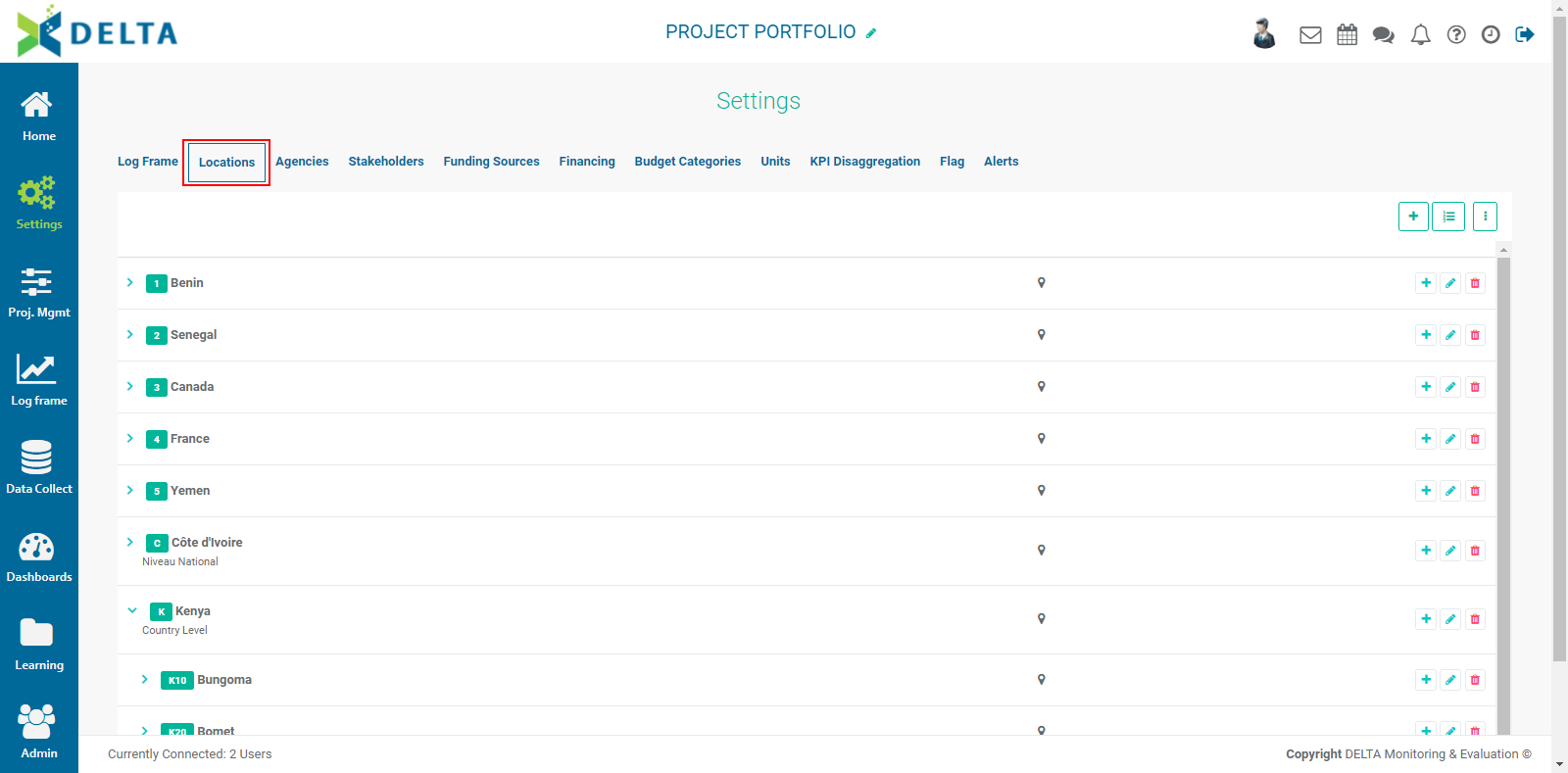
Locations (formerly called Geography List) are the hierarchical list of geographical localities of all the locations where portfolio projects take place. While previous versions of Delta required importing a locations list for every project, the current version of Delta centralizes Locations at the Portfolio level. Locations are the second tab in the Portfolio Settings module.
The toolbar for this screen includes the following icons (at top right):
From left to right: Add, Geography Division, and More.
A Locations list is created in two parts: the Geography Divisions, and the Locations List proper. The divisions determine the structure of the list, including the levels, and the list itself contains the actual locations’ names. A list can be created manually or imported. Whether you manually input or import a list, it’s a best practice to plan the geography divisions ahead of time. Locations are coded according to their hierarchy and level of nesting within that hierarchy, which can take time and be confusing if it’s not planned ahead of time before creating the list. A crucial part of the exercise is determining the length of each level code.
For example, a list which contains four levels might be ordered as follows, from the top down: Country, Province, District, and Village. These are your Geography Divisions. Let's say this list will have one country, which can be coded as C1 or C01. This determines the length of the code for the Country level, in this case 2. Depending on how many provinces are contained in each region, we might assign two or three characters for the country, such as P1 or P01. The nomenclature is entirely up to you. The number of items at each level of the list will help you figure out how many characters you'll need for each level. You can mix numbers and letters, and use special characters such as hyphens and underscores.
The result in your spreadsheet might look something like this:
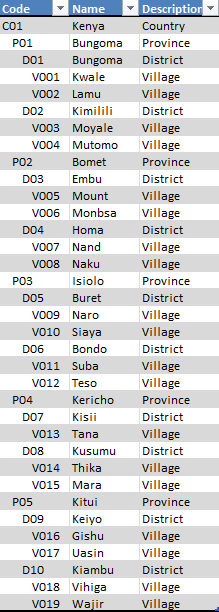
where C is Country, P is Province, D is District, and V is Village. This example also uses indents (not spaces or tabs) in the worksheet in order to better visualize the hierarchy between the different levels.
Once you’ve worked out how you want to code the Locations, you’ll also have on hand the length of each level’s code. In the example above, C=3, P=3, D=3, and V=4. This will constrain what you can input for each location’s code. This allows you to enter the correct information for geography divisions.
Delta supports three different ways to input a Locations list: manual, spreadsheet import, and GIS server import. The latter should only be used when entire countries need to be imported. There is no functional limit to the number of locations that can be input or imported into Locations.
Regardless of whether you will be inputting the Locations by hand or via Excel import, you’ll need to determine the nomenclature you want to use for your list, as explained above.
NOTE: the following instructions assume that no locations information has been entered into the system, and that the Locations list and its hierarchy and codes have been worked out in advance.
To enter geography divisions manually, from the Portfolio screen, click the Settings icon in the left navigation, then select Locations from the horizontal navigation. You'll be taken to the Locations screen.

The toolbar at immediate upper right contains two icons: Geography Divisions, and More. The contextual More menu contains the import and export functions. Click the Geography Divisions icon to open its input window.
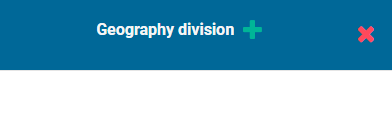
Click the + in the window title bar to add the first (top level) geography division. Enter its label, and the number of characters you want to use for it.
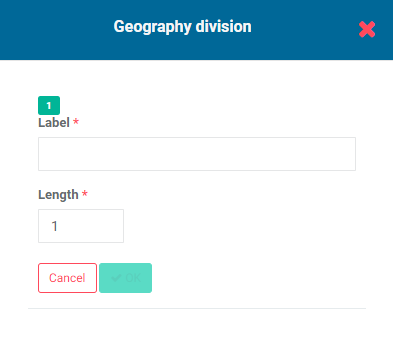
Click OK when you’re done, then click on the + in the window title bar to add the next level down. You’ll notice that the default Length field is 1+ the number of characters you used for the top level division. Select the number of characters you want to use, based on the nomenclature you worked out beforehand, and enter the name of the level.
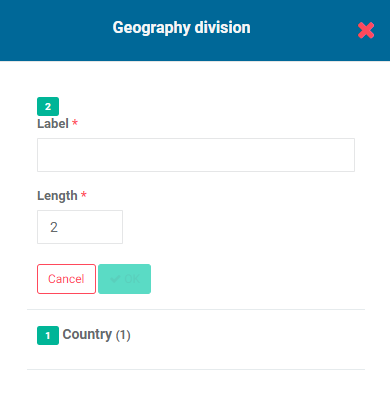
When you’re done entering the levels, click the X in the window title bar to return to the Locations list screen.
A visual cue that the system contains geography divisions is the appearance of a + button to the left of the Geography Divisions button.
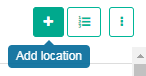
To add locations manually, from the Locations screen, click the + button to the left of the Geography Divisions button to bring up the Locations popup window.
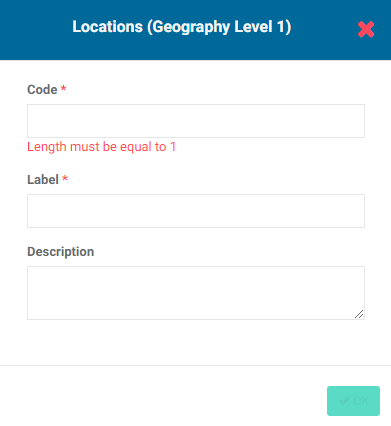
Enter the code for the location. This is the highest level in the list. You will be restricted to the number of characters you selected when you created the divisions.
Enter a label for the location (mandatory) and a description for the location (optional, but recommended). Click OK to save your work and return to the Locations screen, and verify that your location appears in the list.
Adding locations at the other levels follows the same pattern as the steps above, except that to add those, you’ll click on the + button of the line of the location’s immediate predecessor in the hierarchy. To enter provinces, you’ll click on the + button of the top-level location, in our example the country. To enter districts, you’ll click on the + button of the province where the district is located. Similarly, to enter a village, you’ll click on the + button of the district where the city is located.
It’s a matter of preference as to whether you enter all the locations at a given level, then all the locations at the next lower level, or whether you enter all the locations of a given branch of the Locations list, then move on to the next branch.
You can also import your Locations list instead of entering it manually. Whenever you import data into Delta, make sure that only one sheet in the workbook contains data. Delta assumes there is only one sheet in an import file, and will not allow you to select a sheet from a multisheet workbook. You’ll also need to remove any extra information from the sheet, such as instructions, extra lines, etc. When you import a Locations list, you don’t need to create the geography divisions first. The Description field is used to place each location in the correct spot in the hierarchy.
To import a Locations list, from the Locations screen, click the More icon and select Import From Excel File. Navigate to the Excel file you want to use, click on the file to select it, and click Open or press Return on your keyboard. Delta will display a progress icon showing that the data is being imported. If the import is successful, the Locations list will appear on the screen. If the import was not successful, Delta will show a message to the effect that there was an error in the data structure. Errors are principally caused by two situations: the data sheet contains extraneous information, or the structure of your hierarchy is inconsistent. You’ll need to correct your data sheet before you can import it.
Whether you add your Locations list manually or import it, you’ll be able to tell at a glance whether the structure is what you intended by using the carets next to the location to expand and collapse each level.
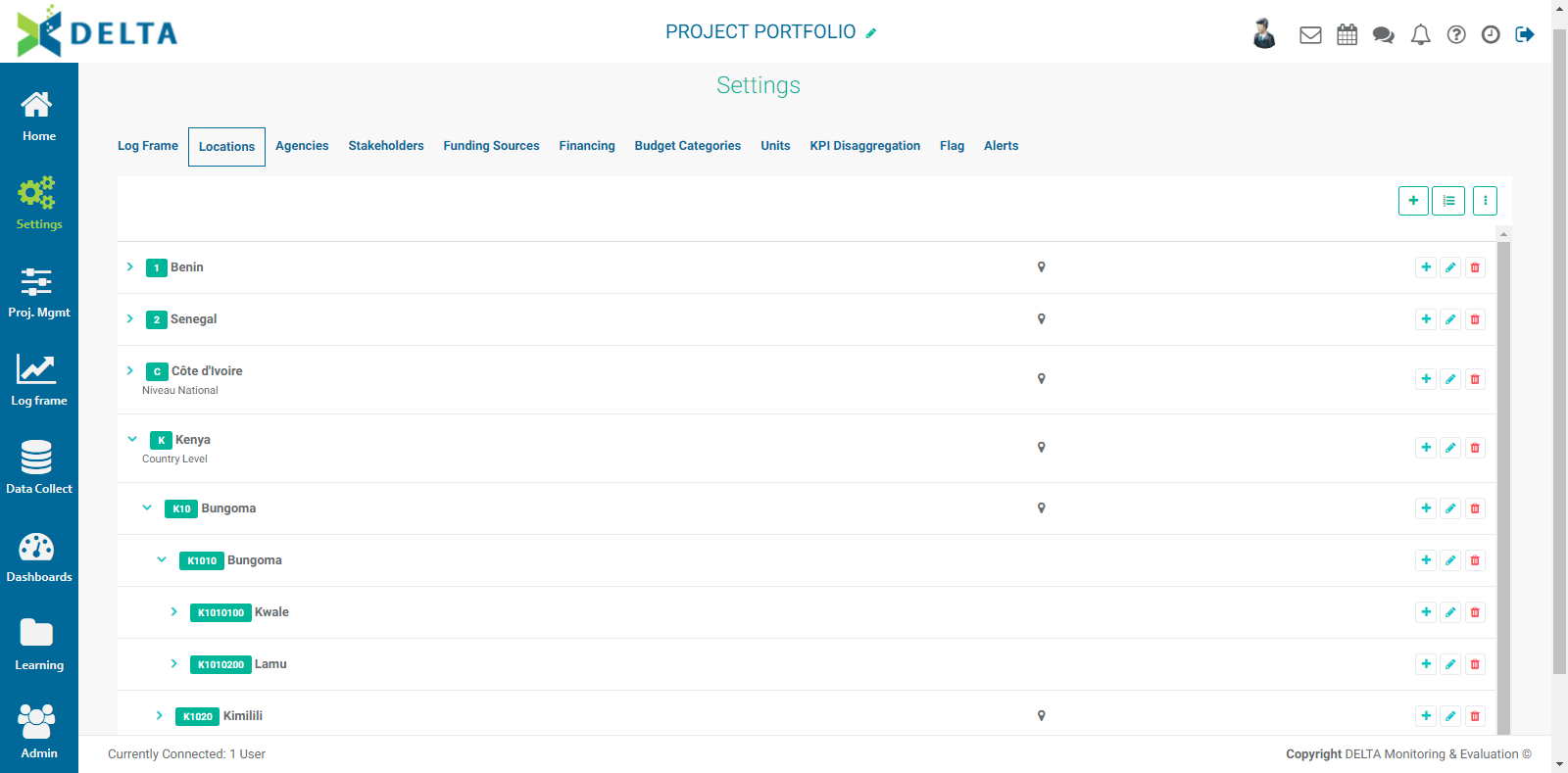
If the import worked but you still see errors in the structure, you can correct the errors in your data sheet and overwrite the faulty Locations list by importing the corrected one. All the data will be replaced. IMPORTANT: overwrites CANNOT be undone. Proceed cautiously.
The last thing you’ll need to do after importing your Locations list is click on the Geography Divisions button and rename the generic Level 1, Level 2, etc. labels in it.
You can also edit the individual labels of geography divisions and locations, but not their codes. Click the Geography Divisions button or the Location's Edit button, make your changes, and save your work.
As mentioned previously, Delta also allows the import of Locations list from a GIS server; however, this function imports entire countries at a time. If your project only concerns a relatively small number of locations, working out the geography divisions and codes and importing your locations from an Excel spreadsheet is most likely the most straightforward way to handle your Locations list. You also need to keep in mind that GIS information usually reflects political boundaries, which may or may not be useful to your particular project.
Once your Locations list is complete, the More menu at top left will change to reflect the presence of locations data in the system.
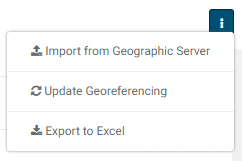
As mentioned above, Import from Geographic Server allows importing GIS information from an entire country at one time. Select it from the More menu to open the import window.
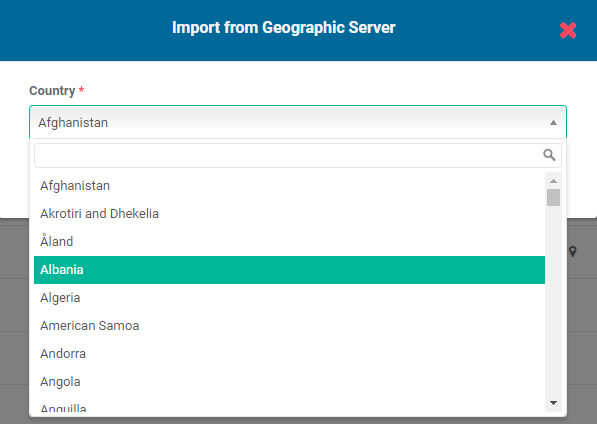
Select the country you want to import, and click OK. The country's GIS information will appear in the Locations list once the import is completed.
Update Georeferencing allows associating locations with GIS-mapped objects. Locations which are properly associated will display a GPS pin in the Locations list.
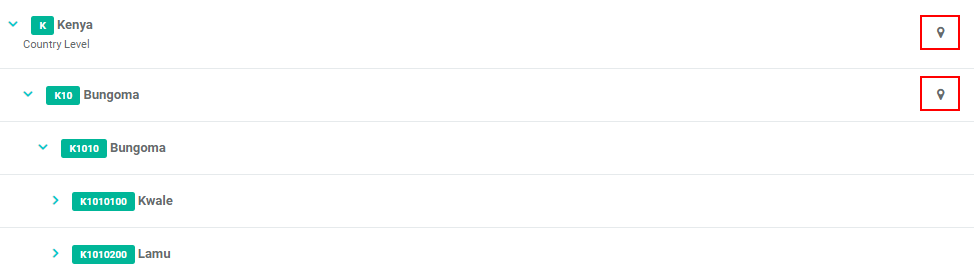
If some locations lack GPS pins, you can use Update Georeferencing to update them and have them represented correctly on map displays. NOTE: the names of localities must match those of officially recognized locations for the update to yield results. Note also that this operation can take time, depending on how many locations are in the list.
Previous: Portfolio Settings: Log Frame | Next: Portfolio Settings: Agencies