PM: Activities: Configuring an Activity
Overview
To work with activities, enter the project's Project Management module, and select the activity you want to work with from the list on the APB screen. Activities which have not yet been configured will display no information, specifically the unit of measure.
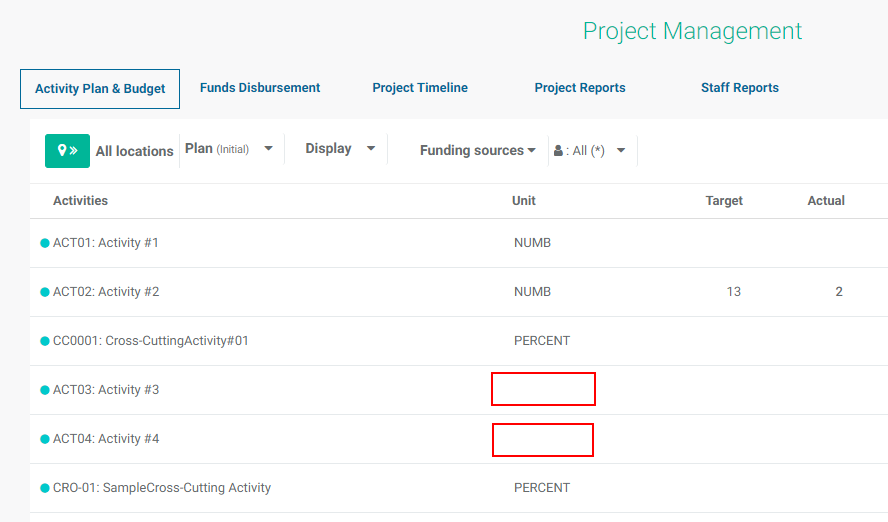
Click any activity in the APB list to open it. Configuring an activity is straightforward. To begin, click on an activity which does not show any information except for its code and name. You’ll be taken to the activity Details screen. The label for this screen will not appear until you’ve saved your work.
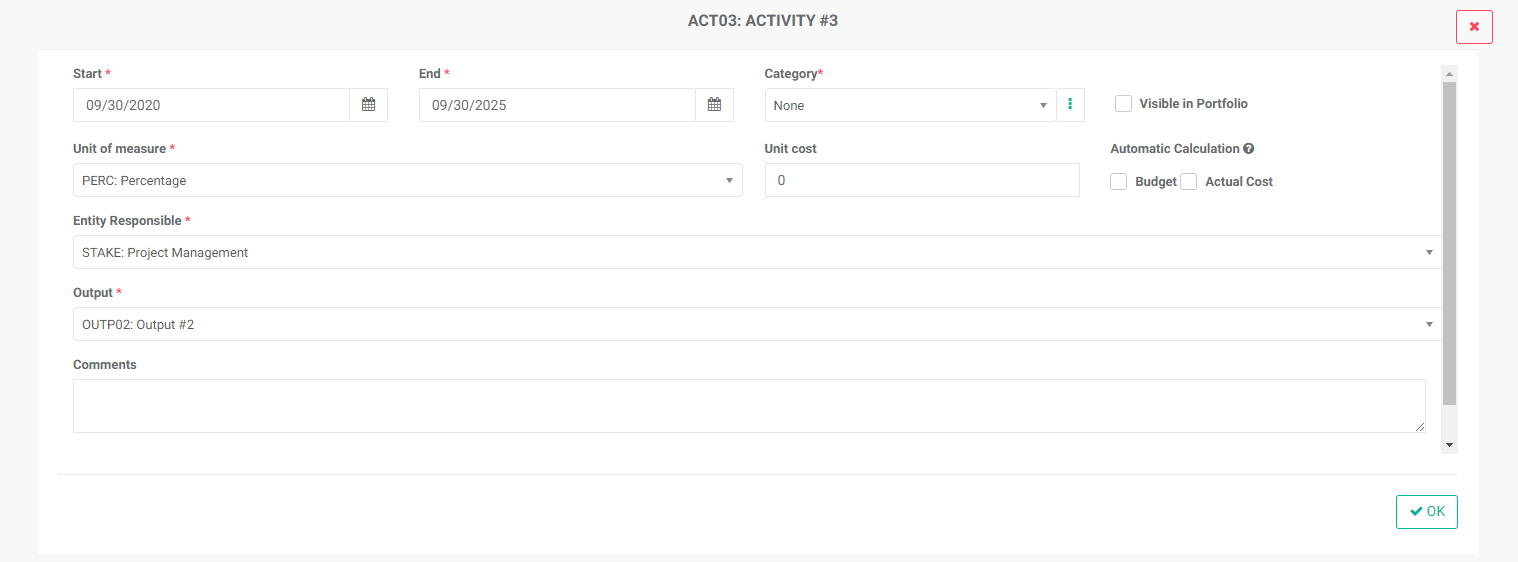
Mandatory fields are marked by an asterisk (*). Adjust the Start Date and End Date; the initial dates in those fields are the project start and end dates.
In a new project, the Category pick list will be empty. To create an activity category, click the More icon at the end of the field to bring up the Activity Categories popup window.
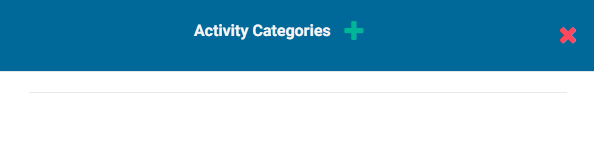
Click the + in the popup window title bar to add a new category.
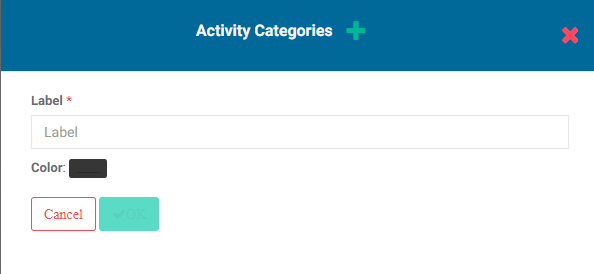
Enter the name of the category, and select a color for it. Click OK to save your work. The new category will appear in the popup window.
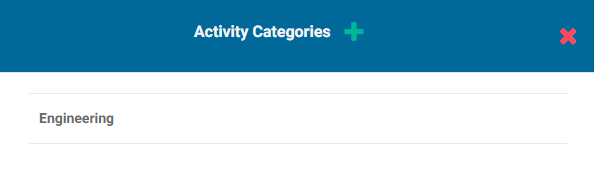
When you're done, click the X to close the popup window and return to the activity configuration screen. The new category will appear in the pick list and can now be selected.
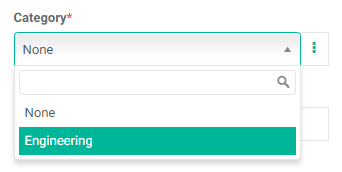
The Visible in Portfolio checkbox allows this activity to correctly roll up and be displayed at the portfolio level. This also makes the activity easier to find for portfolio managers.Although this is not mandatory, we recommend using this feature to make sure all the available information regarding activities appears at the portfolio level.
Select a Unit of Measure for the activity. The units of measure pick list is populated by the Units settings entered for the project. If no units of measure appear, you'll need to add at least one in the project's Settings > Units screen.
Enter the Unit Cost for the activity, if applicable. This field is optional and may be left blank if you do not wish to use the system to track financials, or if the activity has no budget or cost.
If you do use Unit Cost, you may opt to have the system automatically calculate Budget and Actual Cost based on the Unit Cost. Leaving those checkboxes unchecked allows users to enter the information manually when planning and tracking the activity.
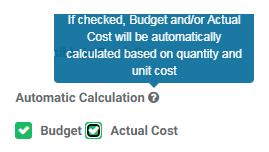
NOTE: you do not have to automate both calculations. If you check Budget but don't check Actual Cost, you'll be able to adjust actual activity costs based on the actual spend. This will make actuals more accurate in cases where activity costs might fluctuate based on location, personnel, etc.
Select the Entity Responsible for this activity. This pick list is populated from the Stakeholders you entered in the project settings.
Select the appropriate Log Frame Predecessor of this activity in the log frame to associate it to the correct branch of the hierarchy. NOTE: the field will automatically display the log frame element which was the parent of the activity when the log frame was input into the project. Note also that the label of this field will reflect the labels you assigned to the log frame template. Double-check this field carefully.
Enter any comment relevant to this screen (optional), then click OK to save you work. The screen will now be labeled as Activity Settings > Details, and the other tabs for the activity will appear as well.
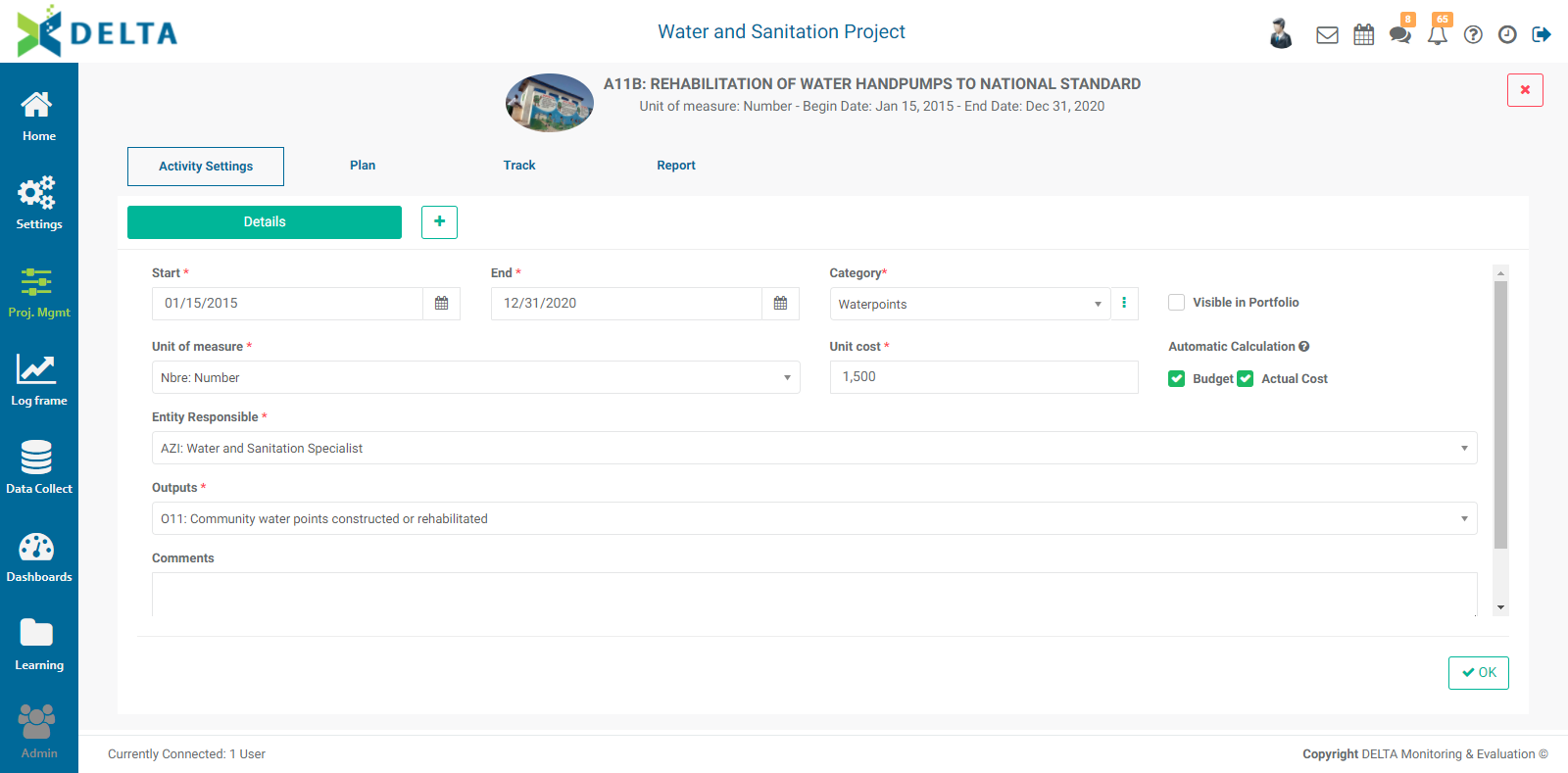
Click the X at top right to close the Activity Details window and return to the APB screen. Locate your activity and verify that the unit of measure appears on the activity line item.

The Activity Details screen contains additional options, contained under the + menu to the left of the Details tab.
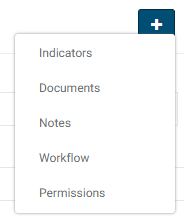
These optional screens are discussed in the following articles:
- PM: Activities: Associating Indicators to an Activity
- PM: Activities: Documents
- PM: Activities: Notes
- PM: Activities: Workflows
- PM: Activities: Permissions
NOTE: The Activity Settings > Details screen also features a Completed checkbox at lower right. Check the box once the activity is completed. This will enable the filters to show the activity in the proper category.
Previous: PM: Activities Screen | Next: PM: Activities: Planning an Activity