PM: Activities: Workflows
Delta supports the use of Workflows for activities. Workflows allow users with sufficient permissions to assign various aspects of activity planning and tracking to specific individuals. Workflows are created from the Activity Settings screen, under the More button's optional screens menu.
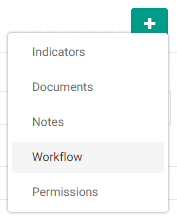
Click the More button, then select Workflow to show its tab. Click the tab to bring up the Workflow screen proper.
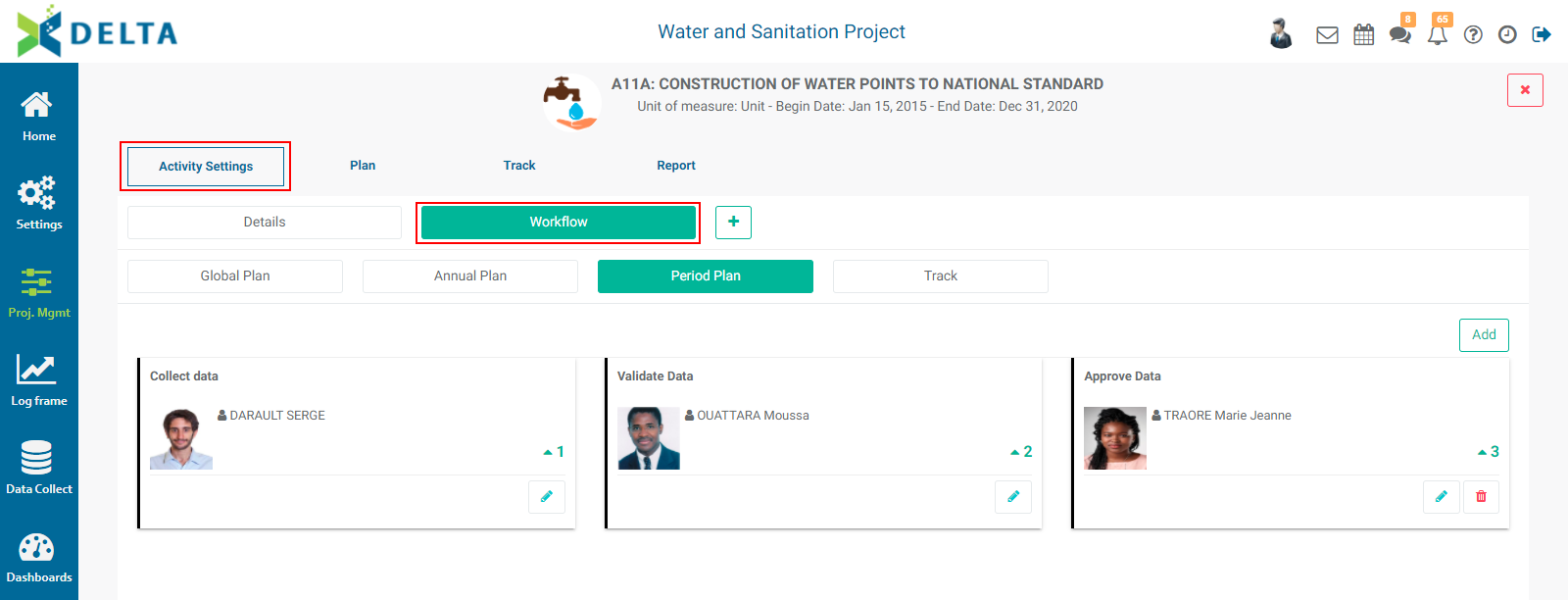
Tasks for which you can create workflows for activities are Global Plan, Annual Plan, Period Plan, and Track. NOTE: if your project does not use Annual Planning, the Annual Plan option will not appear. Planning levels are set in the M&E settings tab of the project definition screen.
All tasks work the same. The example below uses the Tracking tab.
Click the Add button at top right to bring up the Workflow popup window.
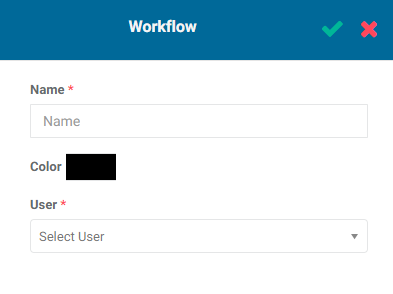
Enter a name for the workflow. If desired, select a color from the color picker (optional). Select the user to whom you want to assign the task from the User pick list. To see the resulting notification, select yourself from the list. All users appear in the list, including superusers, since they can be assigned tasks as well as regular users.
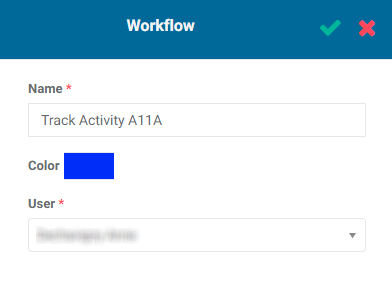
Click the checkmark in the Workflow popup window to save your work and return to the Workflow screen. The new workflow element appears in a tile on the screen.
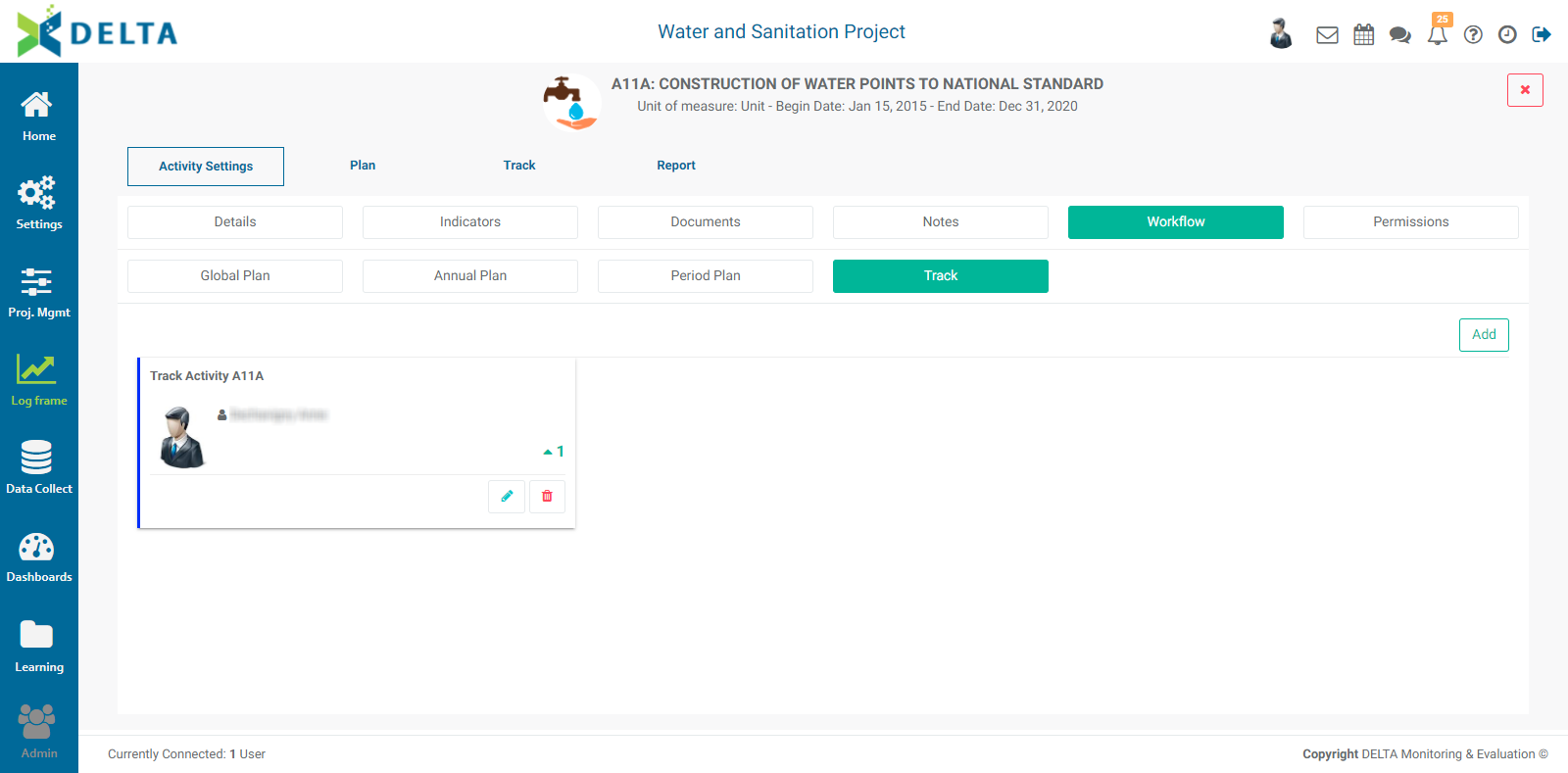
If you only need to assign one person to an activity-related action, you only need one step in a workflow. If more steps are required, click the Add button and add the necessary steps. You can add as many steps as are needed to a workflow. NOTE: each person can only be assigned one step in a multistep workflow. This ensures that the same person does not perform both data entry and verification/approval.
If you assigned the task to yourself, you'll see a numbered badge over the Alert icon in the main toolbar at top right. This indicates to users that they have been assigned an actionable item. NOTE: all instances of a workflow for the entire duration of the project will be created at once. For example, if you have a two-year project, quarterly reporting periods, and ten locations, you will see 80 notifications.

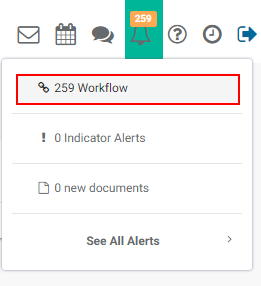
To take action on your notifications, click the Alert icon in the main toolbar, and select Workflows from the menu.
The tabs where your assignments are located will contain a numbered badge. Select the Activities tab to bring it to the front, and click the Track subtab to also bring it to the front.
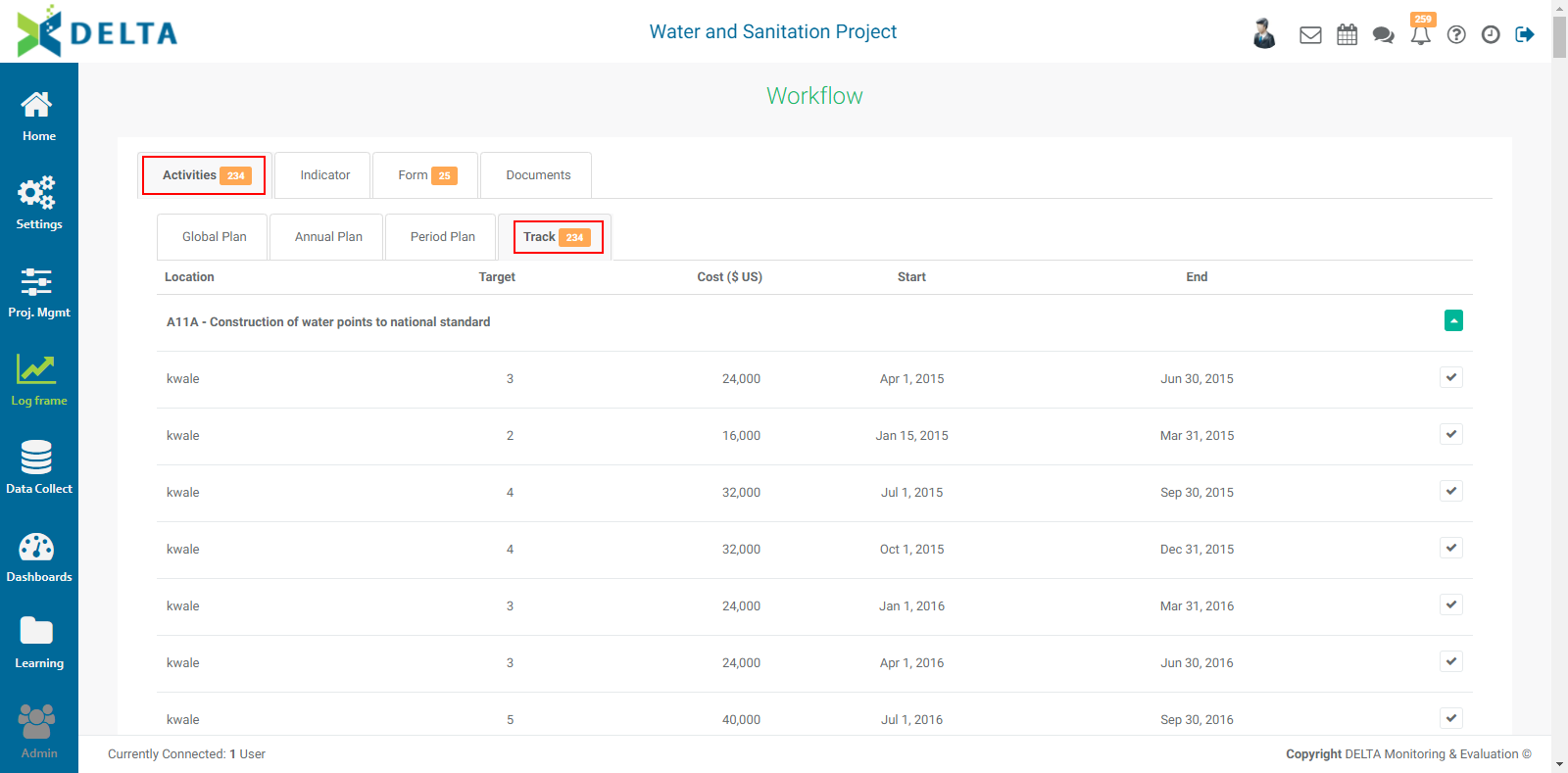
The list is sorted alphabetically by location, then start date. Each item in the list contains target, cost, and dates information for the item, and also features a checkmark icon.

Click any checkmark to bring up the Validate Data popup window. Enter comments and click OK to mark the data as validated.
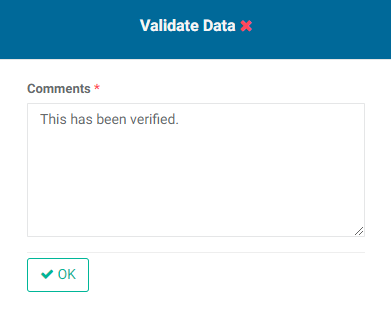
The item will disappear from the list upon completion.
To see the effect of the steps above, go back to the Log Frame module and open your activity. Select Track from the horizontal menu, then select the correct year and period for the workflow item you completed.
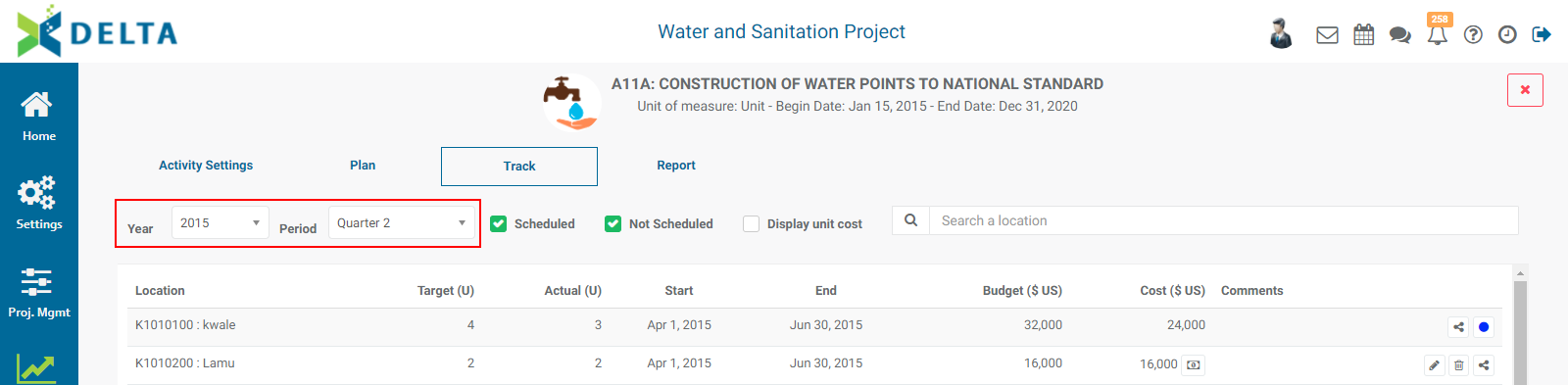
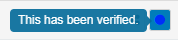
Note that the activity for which you entered a comment is now locked from editing. Mouse over the dot to view the comment you entered. The color of the dot reflects the color of the last step performed in the workflow for easy visual reference to the person who performed the workflow step.

Previous: PM: Activities: Notes | Next: PM: Activities: Permissions