PM: Funds Disbursement
The Funds Disbursement screen allows you to enter project spending by financing source and agreement.
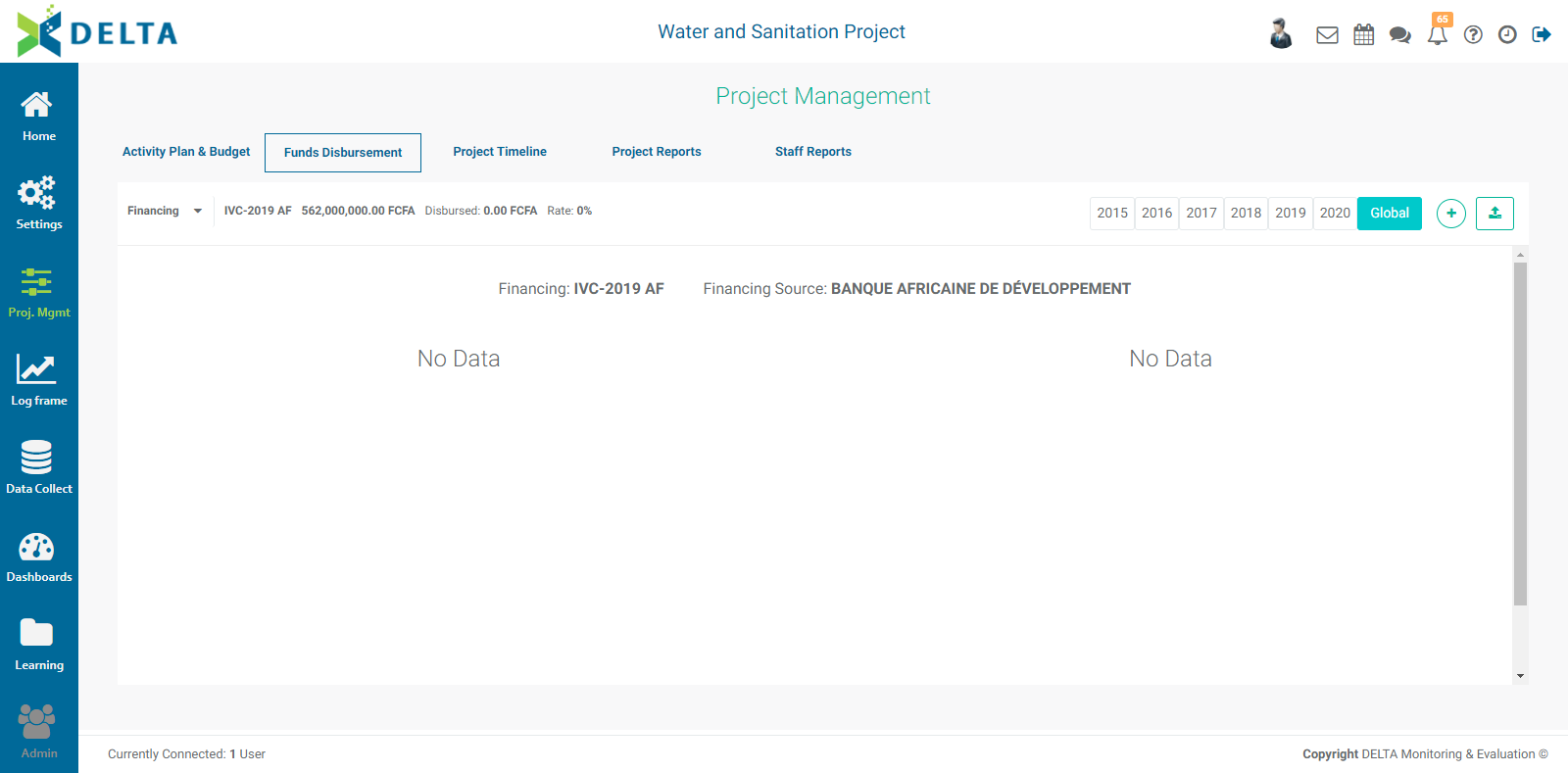
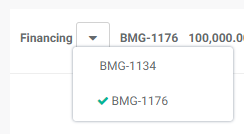
Use the pick list at top left to select the financing agreement you want to view or add information to. The pick list is populated by the information that was entered in the Financing screen of the project's Settings module.
Click the + button at top right to bring up the Disbursement popup window.
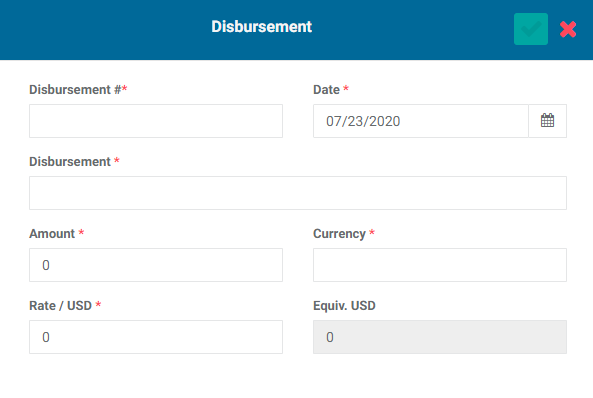
Enter a disbursement number, the date, the object of the disbursement, the amount and currency, and the exchange rate. The system will convert the selected currency to the project's base currency.
Click the checkmark in the popup window's title bar to save your work and return to the Disbursement screen. The information you entered will appear on the screen. Scroll down to see the disbursement graphs.
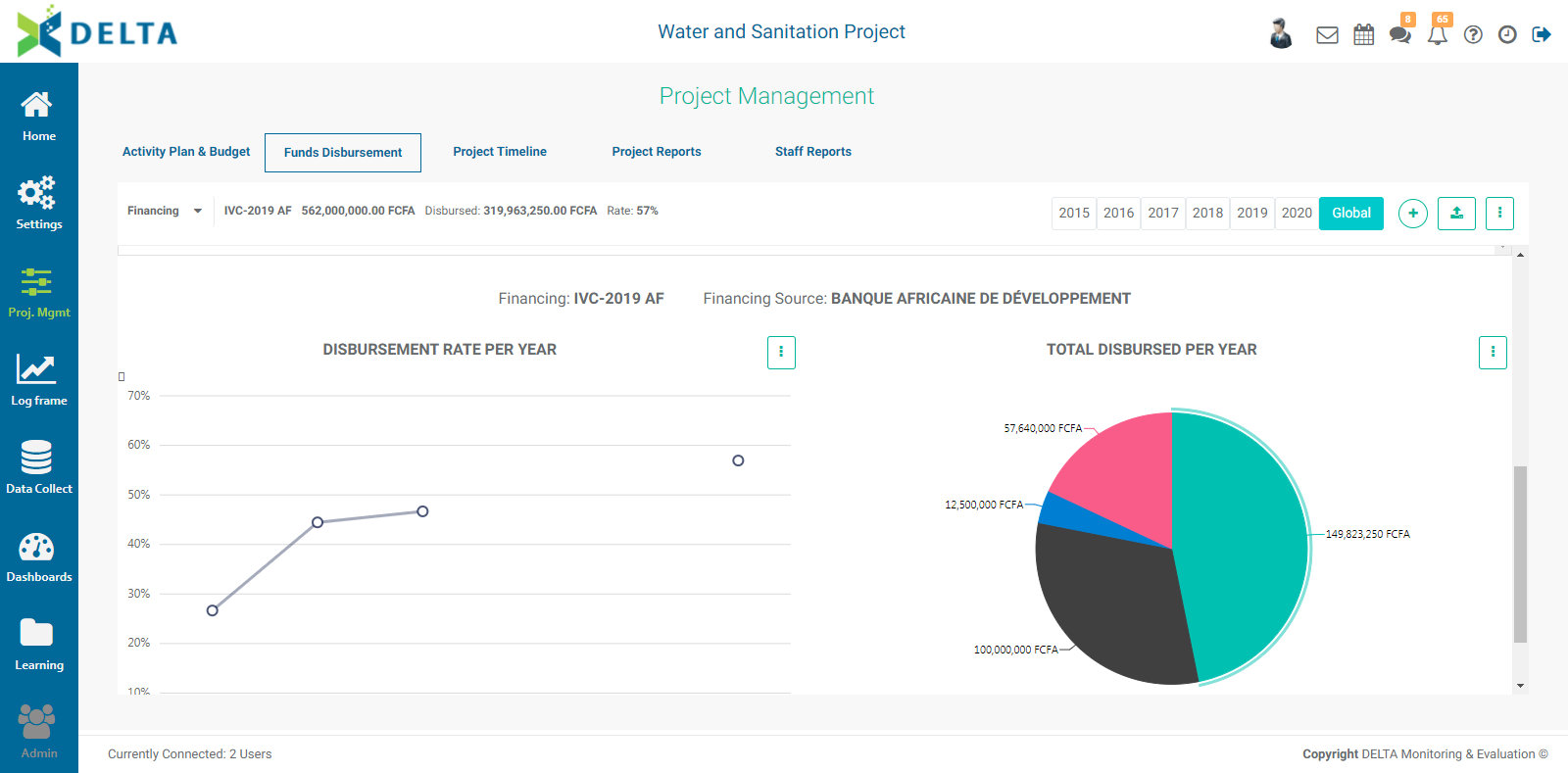
The default view is Global. Use the year tabs at top right to view a single year for a given financing source. If a year contains no data, the screen will display the graphs for the Global view.
You can also import the disbursement data. Click the Import Data icon at top right to select an Excel file for import.

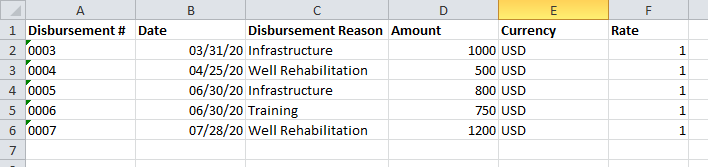
The Excel sheet must contain the following headers: Disbursement # (unique number), Date, Disbursement (reason), Amount, Currency, and Rate. NOTE: whenever importing anything into Delta, make sure the sheet in your Excel document is the only one containing data.
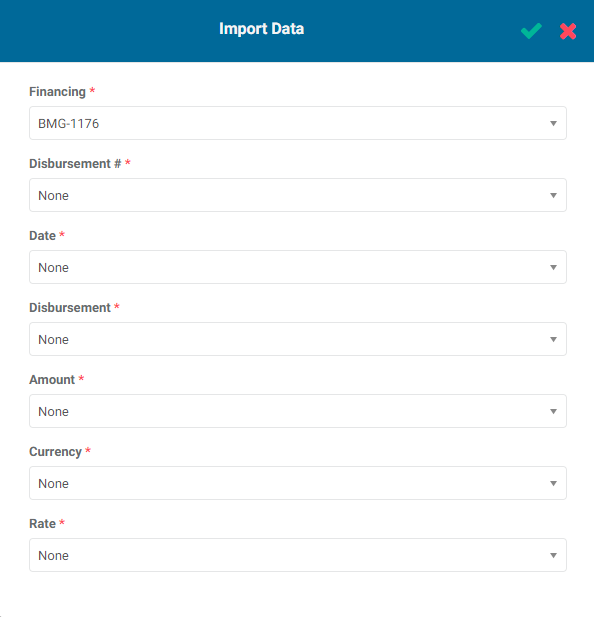
Click the Import Data icon to bring up the import popup window.
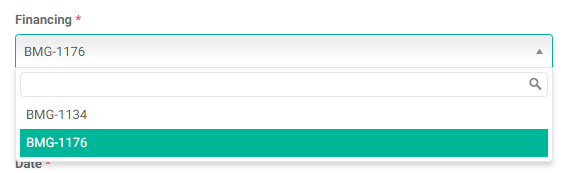
Select the correct Financing Agreement from the first pick list. This list is populated by the entries made in the project's Financing Sources in the Settings module.
Match each field of the popup window with a header of your spreadsheet. Using the same headers in your spreadsheet makes it easier to correctly match all the fields with a spreadsheet column.
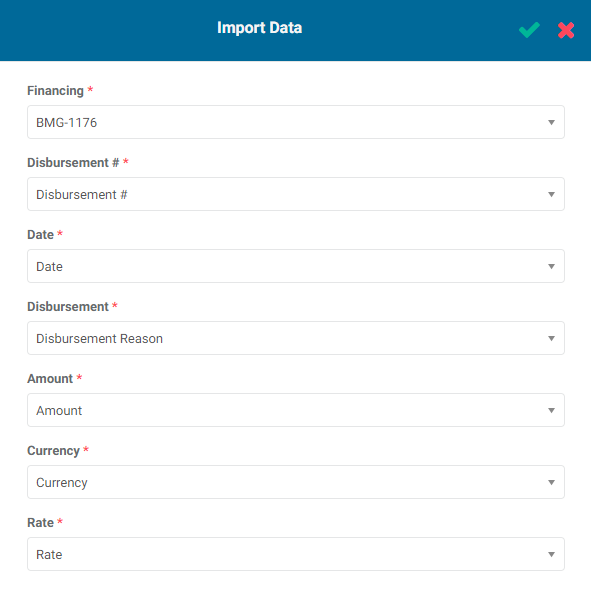
Once all the fields are matched with a