Creating a Project: Add an Image
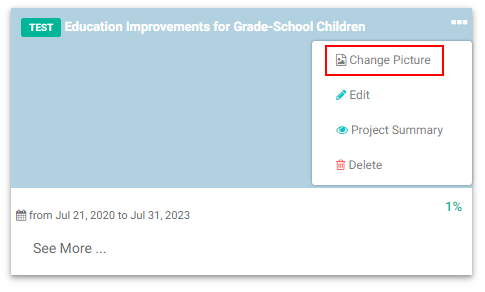
To add an image to your project, locate its tile on the Portfolio page, click on its More icon, and click Change Picture. NOTE: you must be in Tile view on the Portfolio page to add an image.
Browse to the image you want to select, click on it once to select it, and click Open. The image will appear on the project tile.
To cancel at any time while entering project information, click the X button at the top right of the screen to get back to the Portfolio screen.
Previous: Creating a Project: Project Milestones | Next: Project Home Page: Main Project Dashboard