PM: Activities: Documents
The Activity Documents screen serves as a repository of activity-specific documents. It's accessed from the Activity Settings tab, under the optional screens menu More button.
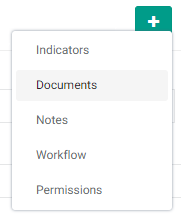
Select Documents from the menu to bring up the Documents tab, then click on the tab to enter the Documents screen proper.
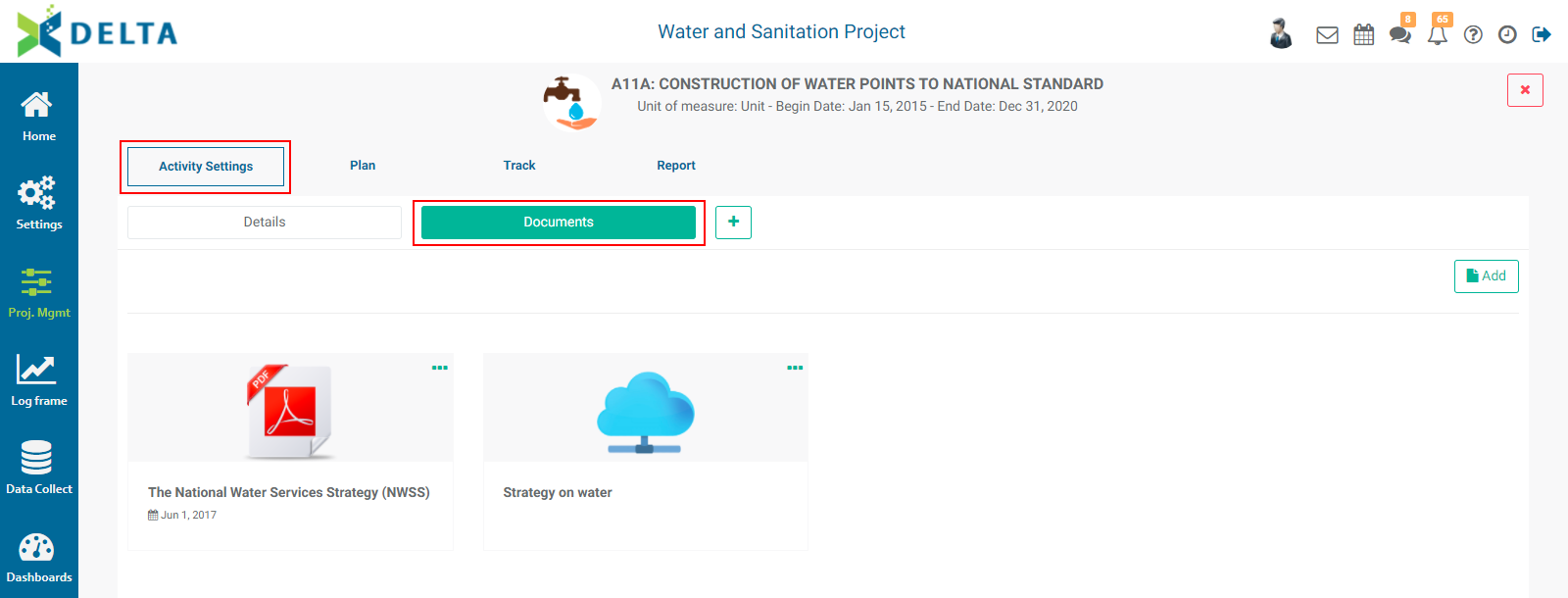
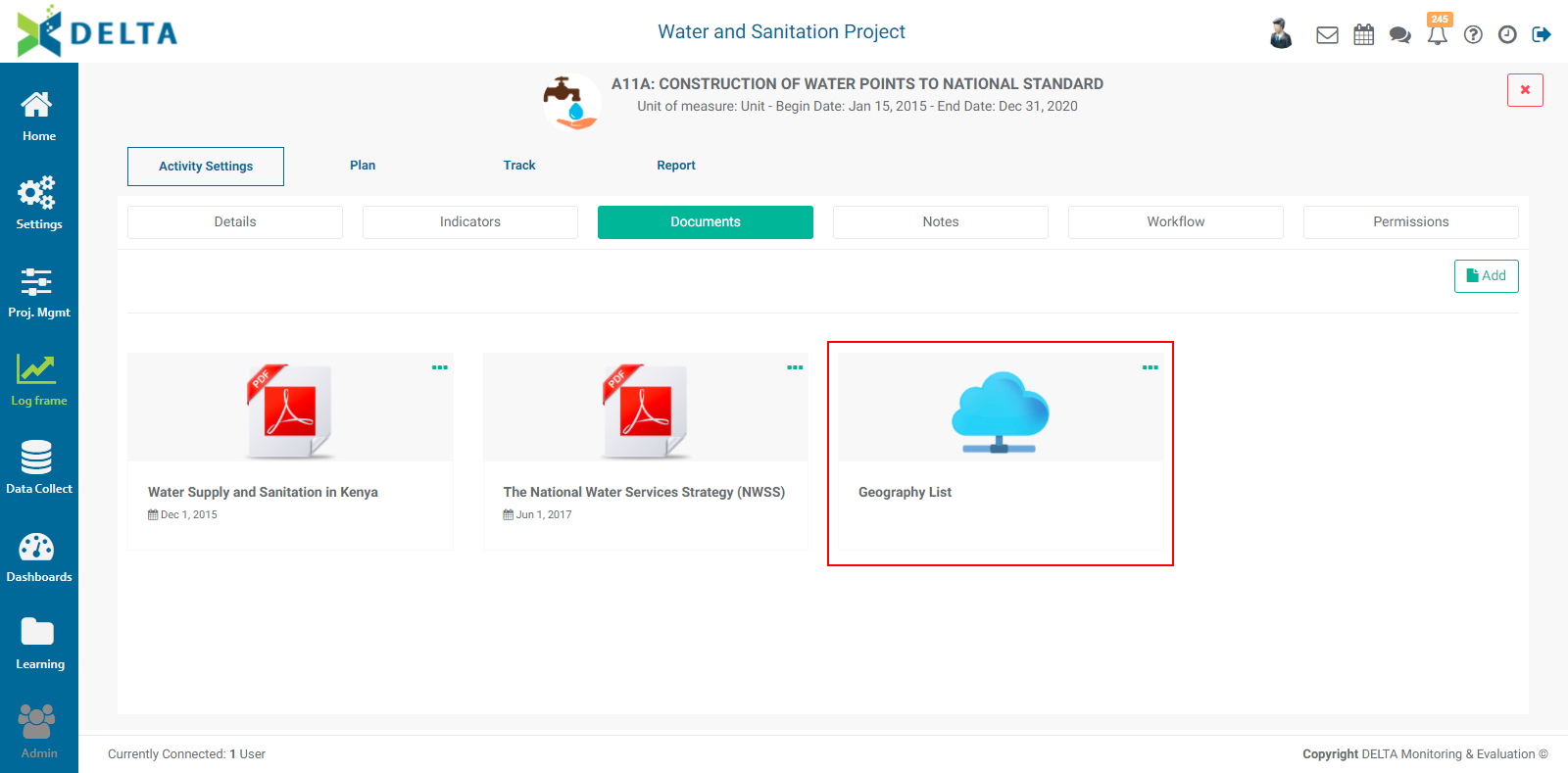
To add a document, click the Add button at top right to bring up an inline form.
Three options are available: link to a Learning Module library document, link to a cloud document, and upload a document.
To link to a library document, click the Document Library radio button. The pick list below it contains all the documents currently available in the project's Learning module.
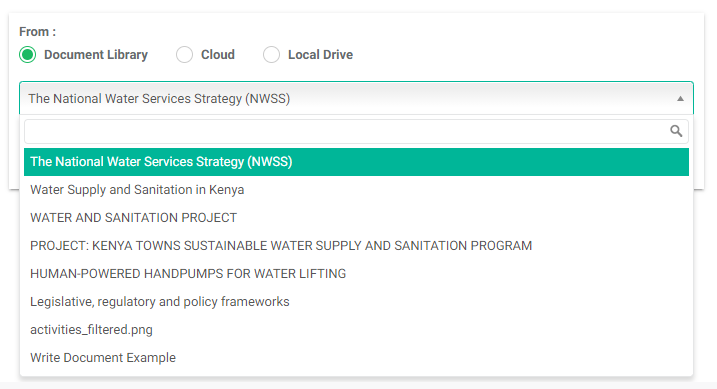
Select the desired document and click OK. The document will appear on the screen.
To link to a cloud document, click the Cloud radio button, then enter the file name and the external link for the file. This is particularly useful when linking to a master or authoritative version of a document, for example on a Sharepoint server, Dropbox, or Google Drive. This helps keep the proliferation of multiple versions of a document.
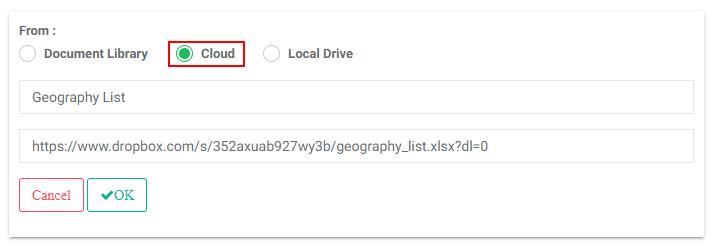
Click OK when you're done. The document will appear on the screen.
To upload a document, click the Local Drive radio button, then click the More (...) icon at the right end of the File field, and navigate to the desired document on your local hard drive or available network drive. Click the file once to select it, and press Enter on your keyboard.
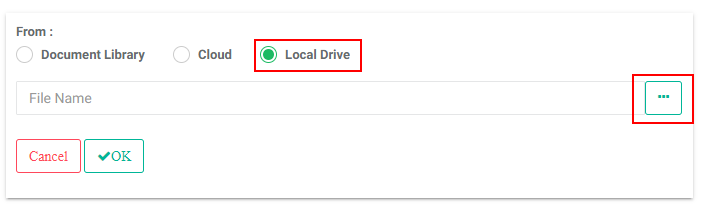
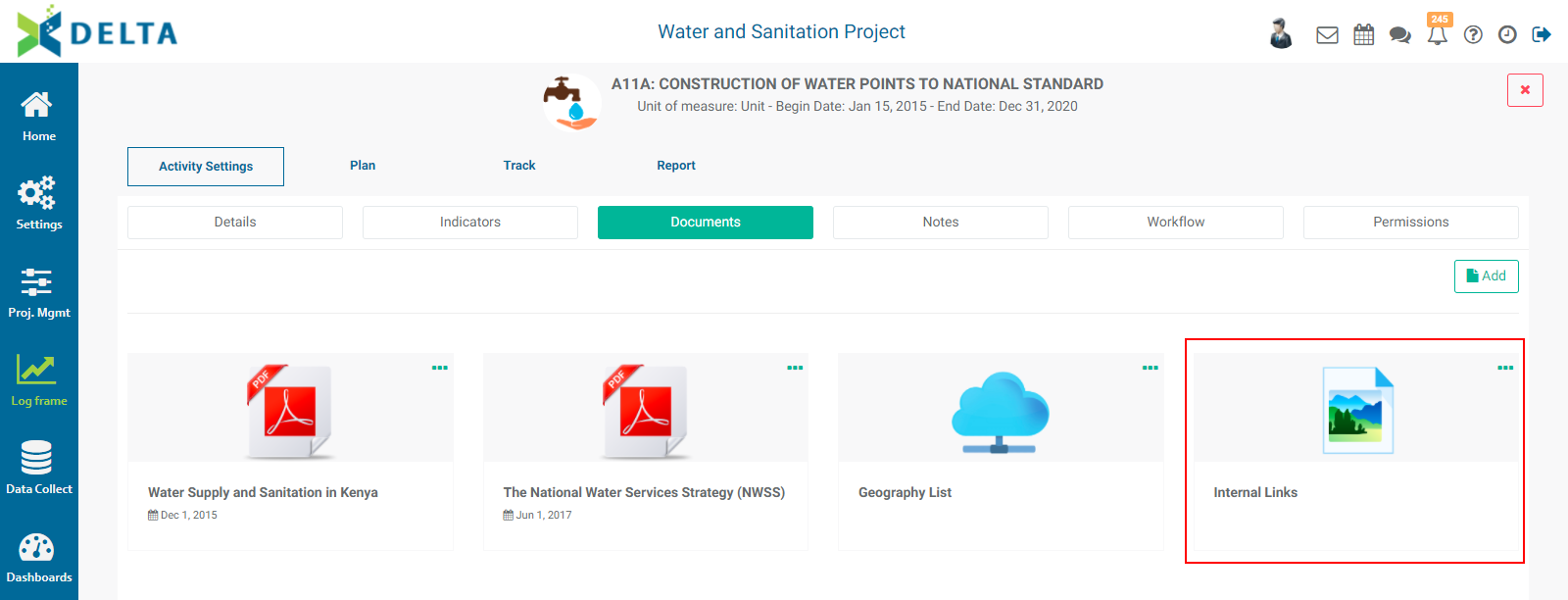
Click OK to save your work and return to the Documents screen. The document will appear on the screen.
To remove a document, click the More (...) icon in the upper right corner of its tile and select Delete. NOTE: this does not delete the actual document, only the link to it.
NOTE: you can remove the Documents tab from the interface by clicking its Delete icon. This will not delete any of the associated document; it will only hide the tab and screen. To restore the tab, select it again from the More menu.
Previous: PM: Activities: Associating Indicators to an Activity | Next: PM: Activities: Notes