Forms Analytics: Pie Chart Reports
The third type of data collection form custom report is Pie Chart. From the Data Collection module, select the form of interest, then click on the form's Analyze & Report tab. Click the +Add button at top right to bring up the menu, and select Pie Chart.
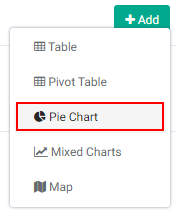
The Chart Settings popup window opens.
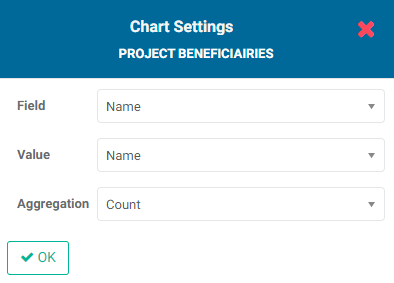
Select the Field you want to use as the basis for the graph, the value to graph, and the aggregation method. The aggregation options are Count, Sum, Average, Minimum, Maximum, and Variance.
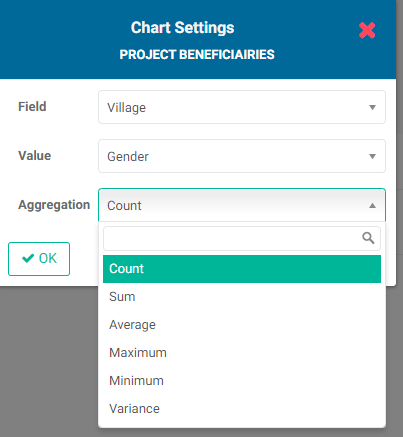
Click OK when you're done to save your work. The popup window will close and your graph will appear on the screen.
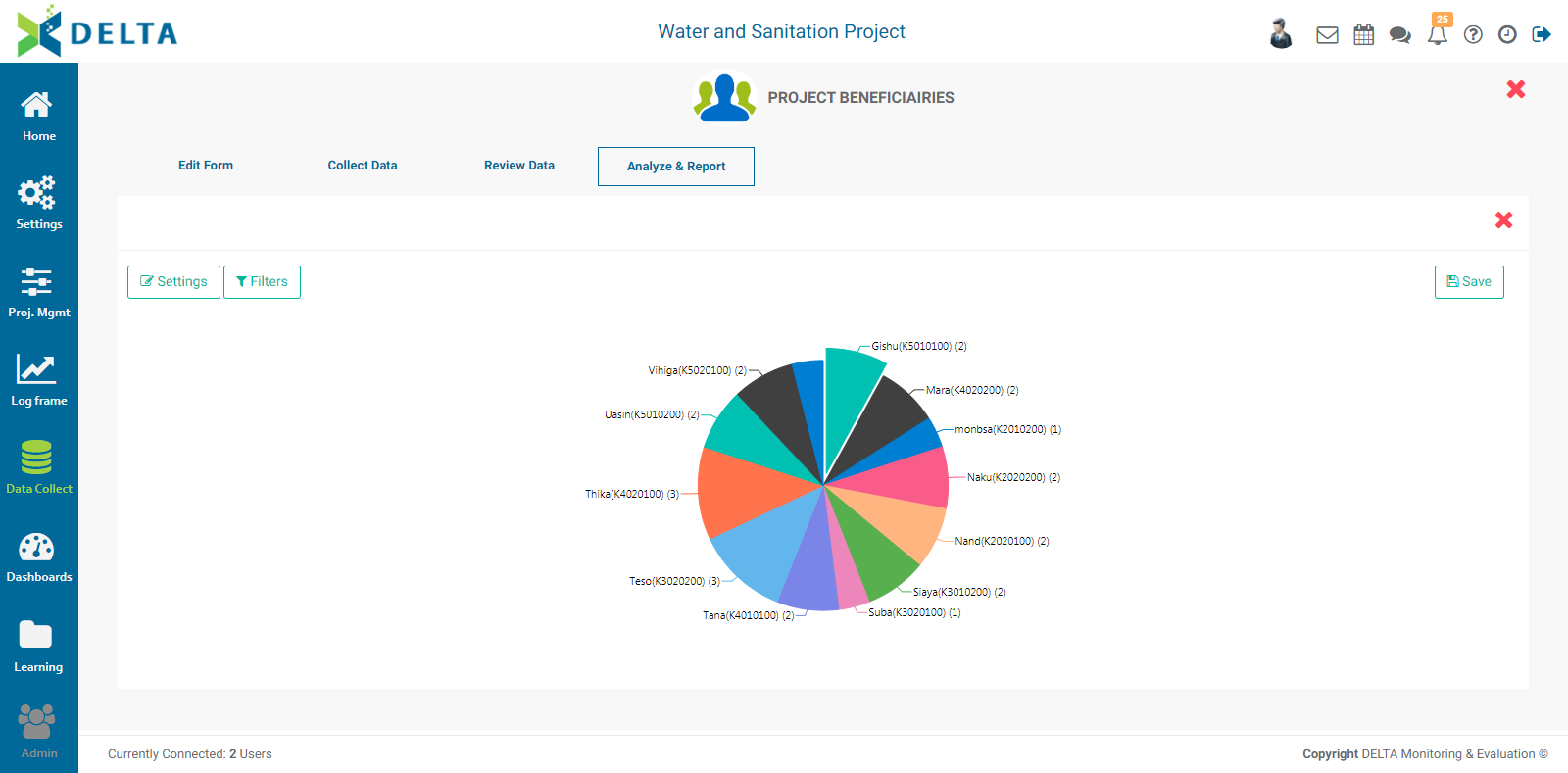
Click the Settings button at top left to bring back the Chart Settings popup window and modify the chart's settings.
To add filters to the pie chart, click the Filters button to bring up the Filters popup window, and click the + to add a new filter.
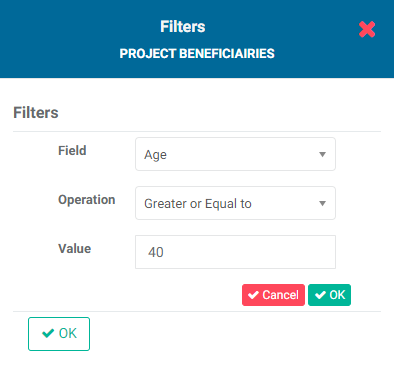
Click the small OK button when you're done to save your filter. The filter will appear in the popup window.
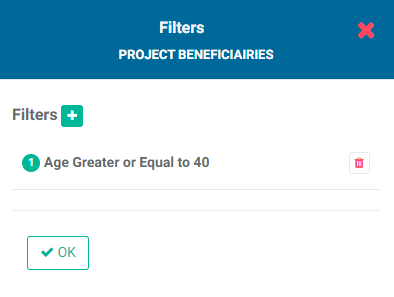
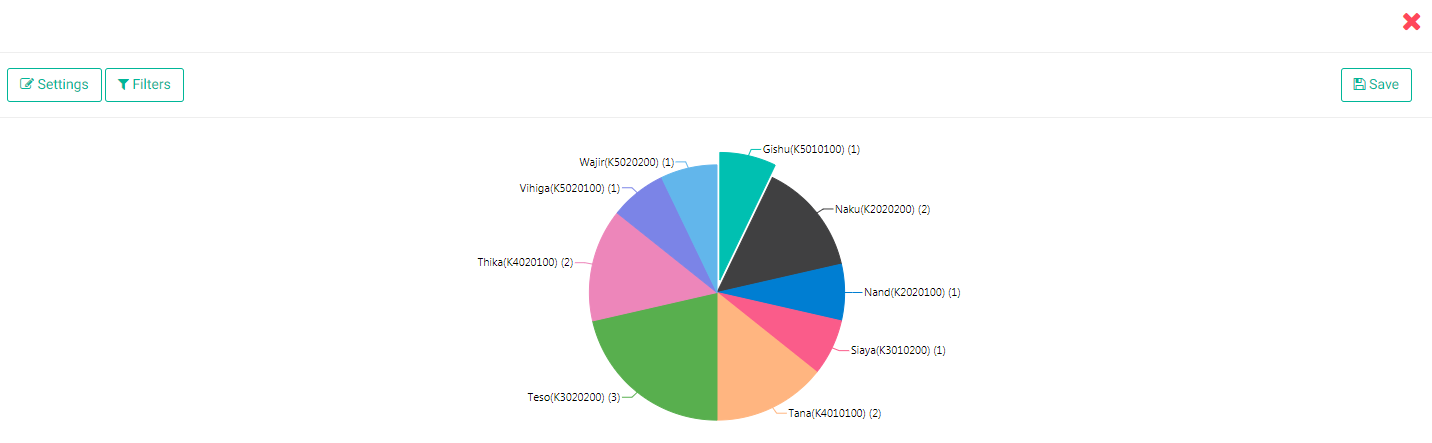
If you're done, click OK to save your work and return to the pie chart report screen. The data will be filtered according to the selected parameters.
If you use more than one filter, you'll need to chain them using AND/OR logic. Use the filter numbers to chain filters. The syntax is 1 AND 2, or 1 OR 2. The AND operator returns only records which conform to both filters, while the OR operator returns records which conform to either or both filters.
To remove a filter, click the Filters button and delete the filter.
One slice of the pie chart is highlighted by default. Click on another slice to highlight it.
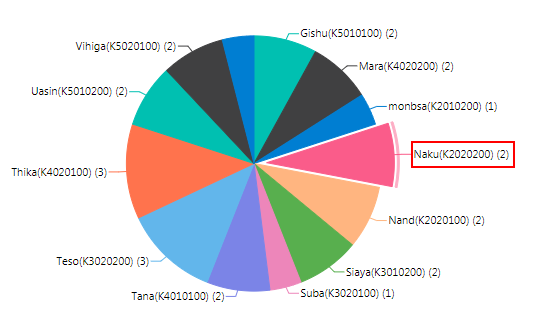
Each slice's data will appear as a tool tip when you mouse over the map.
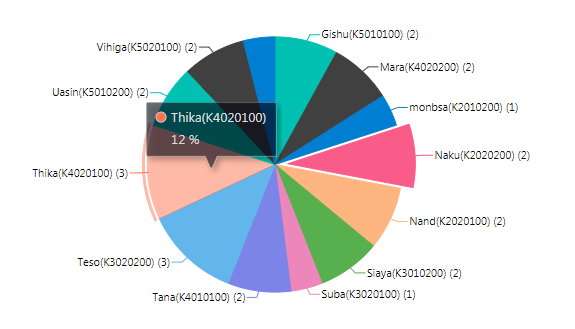
IMPORTANT: you must explicitly save your report. Click the Save button at top right, then enter a title for the report (mandatory) and a description (optional, but encouraged as a best practice). Click OK to save your report. The title you have selected for the report appears on the screen above the graph.
To return to the Analyze & Report section of the data collection form, click the lower X on the right, above the Save button. You'll see your new report listed on the page. Click its name to reopen it and make additional changes, or save as a different version.
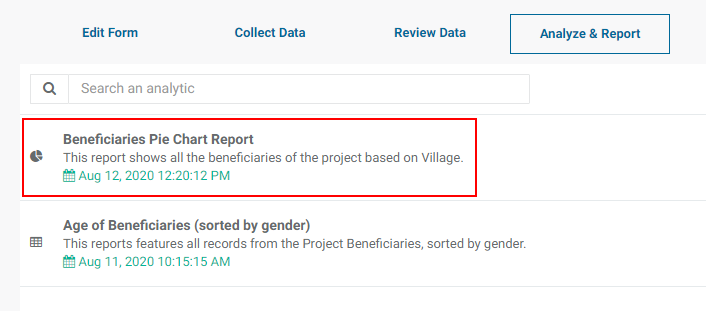
To delete a report, click its Delete icon and confirm the deletion.
Previous: Forms Analytics: Pivot Table Reports | Next: Forms Analytics: Mixed Charts Reports