Indicators: Documents
The Indicator Documents screen serves as a repository of indicator-specific documents. It's accessed from the More button of the Indicator Settings screen.
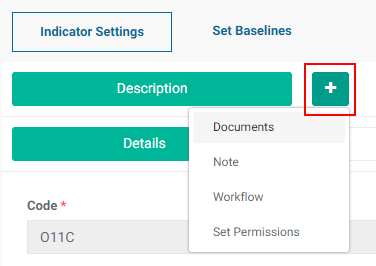
Click Documents in the More menu to bring up the Documents tab, then click the tab to open it.

Click the Add button at top right to add a document.
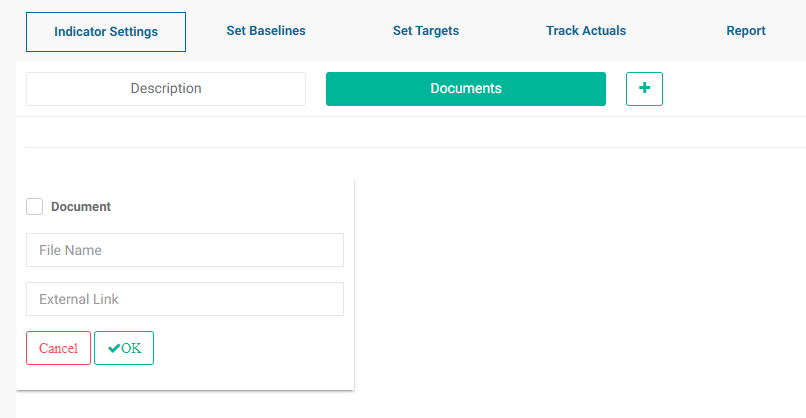
Two options are available: link to an external file, and link to a library document in the Learning Module.
To link to an external document, enter the file name and the external link for the file. This is particularly useful when linking to a master or authoritative version of a document, for example on a Sharepoint server or Google Drive. This helps prevent the proliferation of multiple versions of a document. Click OK when you're done. The document will appear on the screen.
To link to a library document, check the Document box. The File Name and External Links fields will be replaced by a pick list which is populated by the existing documents in the Learning module.
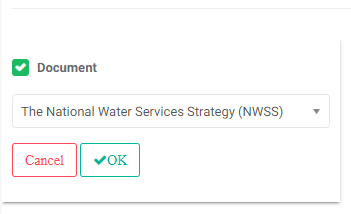
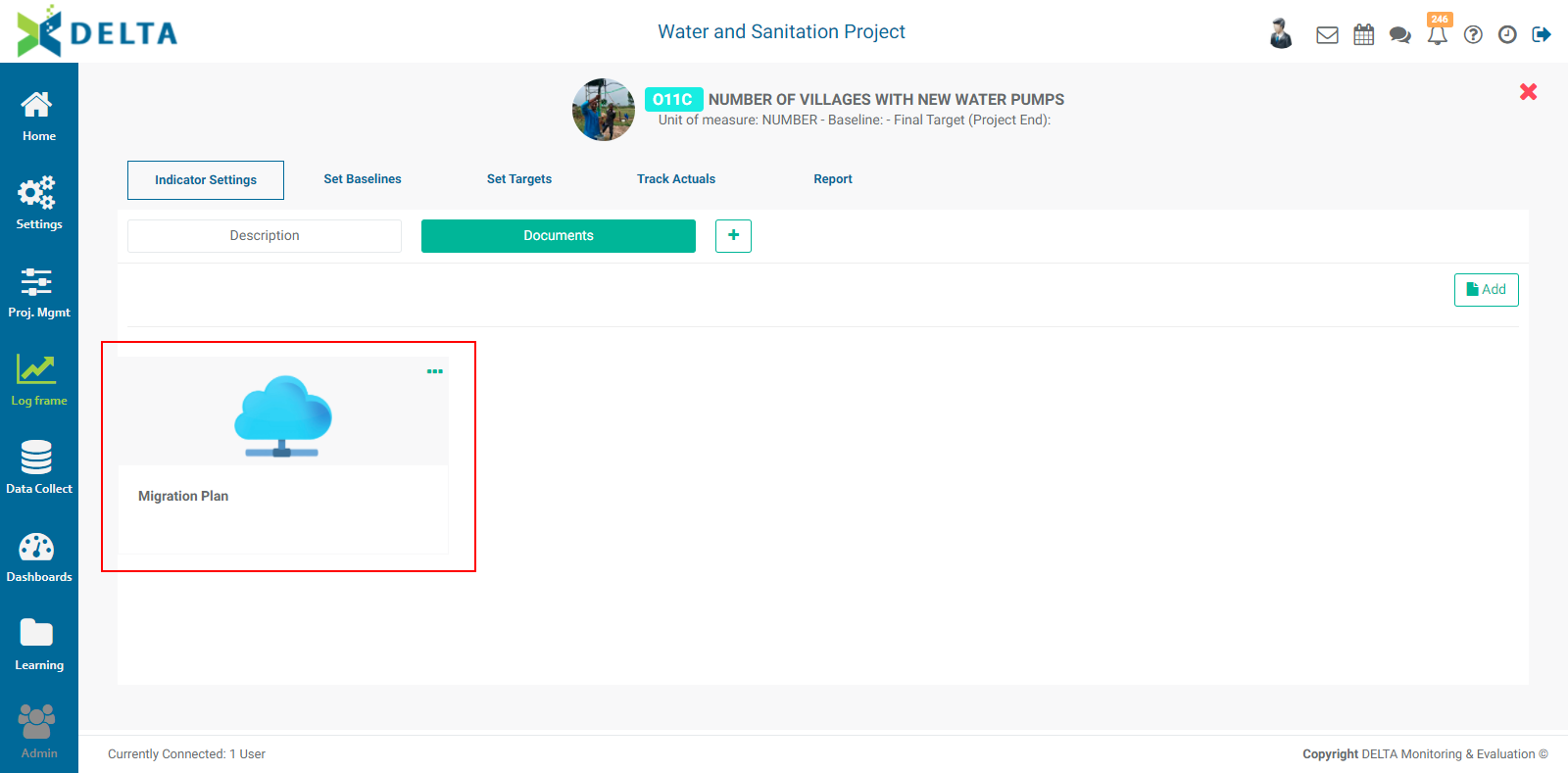
Select a document from the pick list, and click OK. The document will appear on the screen.
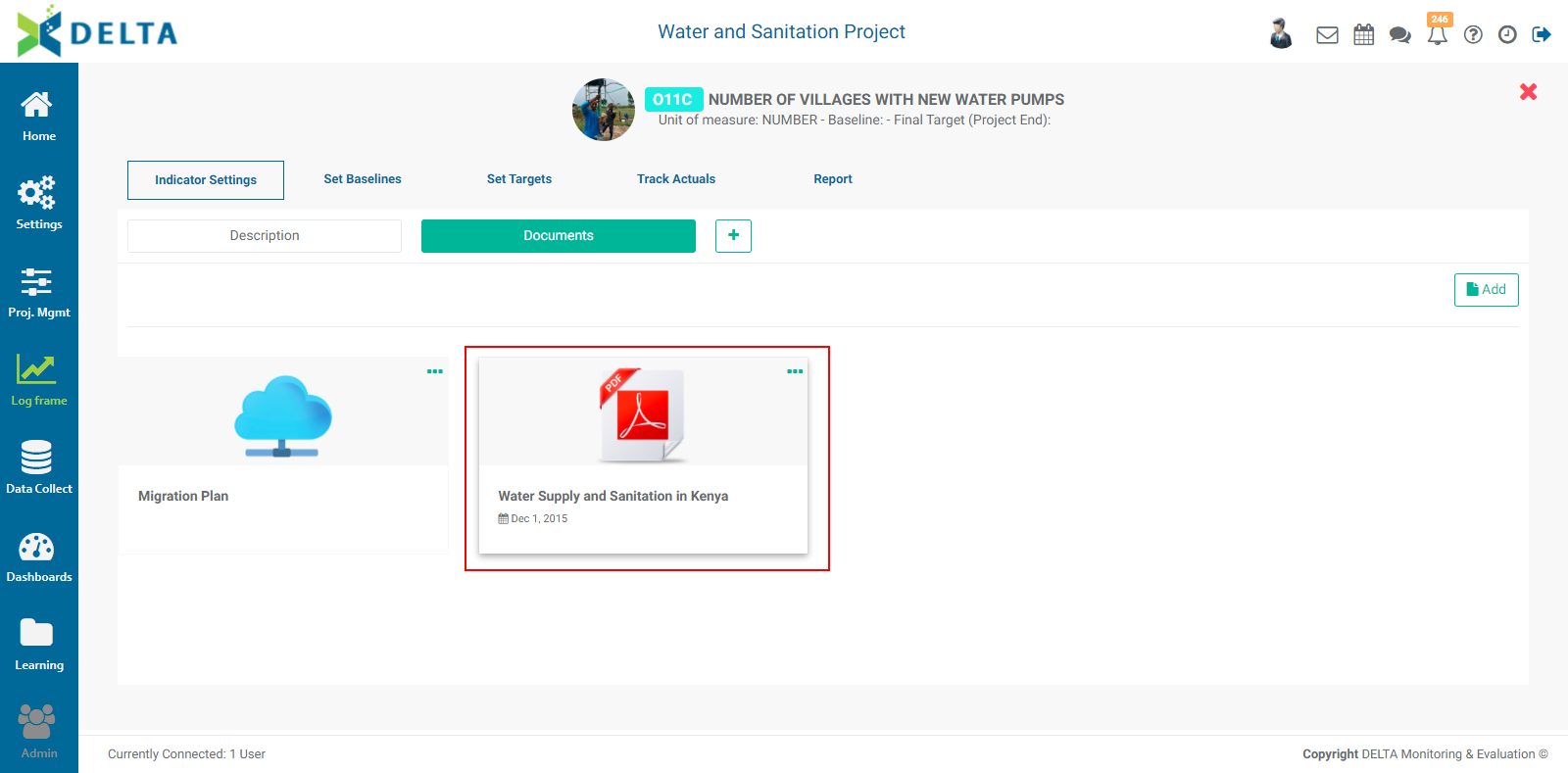
To remove a document, click the More (...) icon in the upper right corner of its tile and select Delete. NOTE: this does not delete the actual document, only the link to it.
NOTE: clicking the Delete icon next to the Documents tab does not delete its contents. It merely hides the Documents tab. To bring the tab back, click the More button and select Documents from the pick list.

Previous: Indicators: Creating Indicators: Spatial Visualization | Next: Indicators: Notes