Indicators: Built-In Reports
Overview
An indicator's Report tab regroups several built-in dashboards as well as custom reports. The latter were previously located in the Analytics module of Delta.
For any data to appear in the Reports, some actuals must be input into the indicator's Track Actuals screen. There are four tabs to the Report screen: Performance, Progress, Map, and Custom Reports.

The Performance tab displays Actuals vs Targets for each location in the indicator. The default view is Global.
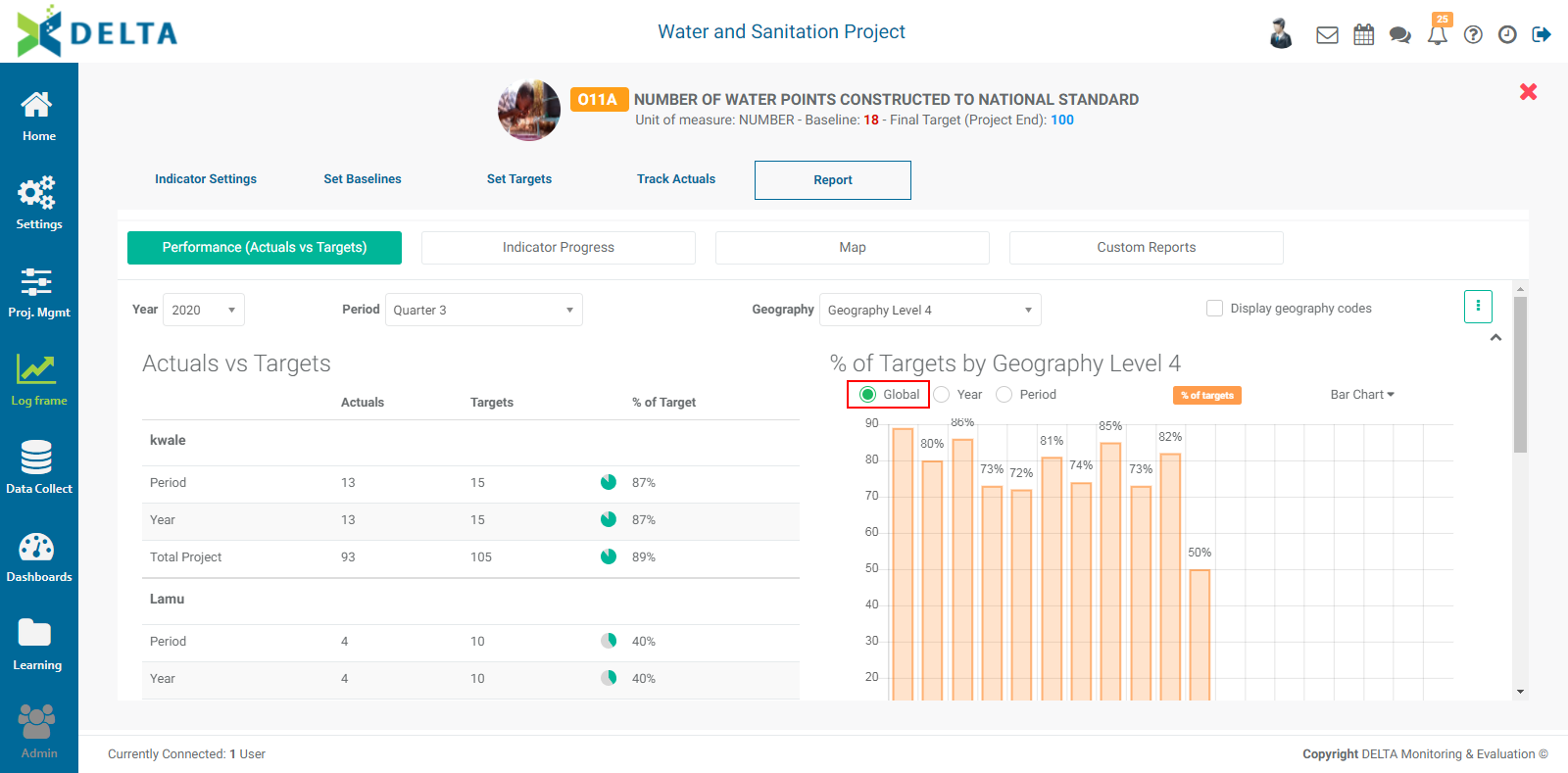
Use the Global, Year, and Period radio buttons to navigate the data. You can specify the year and period by using the pick lists at top left right under the Performance tab.
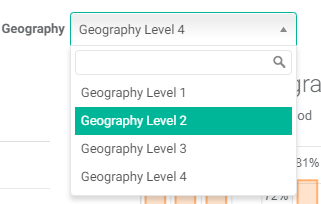
You can select any geography level equal to or higher than the level selected in the indicator definition when it was created.
You can also display or hide the locations' code by checking the Display Geography Codes box.
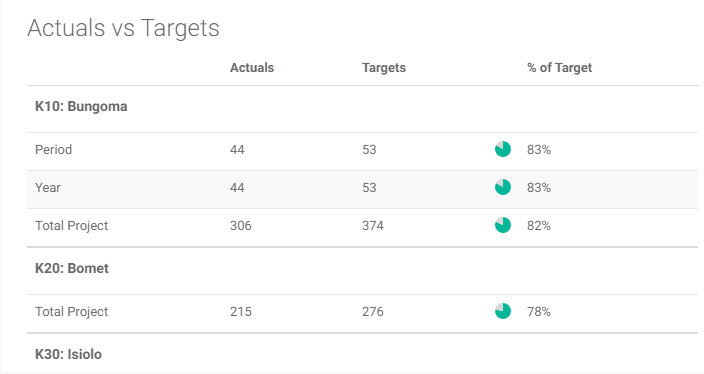
The left pane displays the locations data based on the selected year, period, and geography in tabular format. Each location features a circle which is filled to the performance percentage of the indicator for that location. It also scrolls independently from the other areas of the screen.
The right pane displays the indicator's data in graph format. This pane also scrolls independently of the rest of the screen.
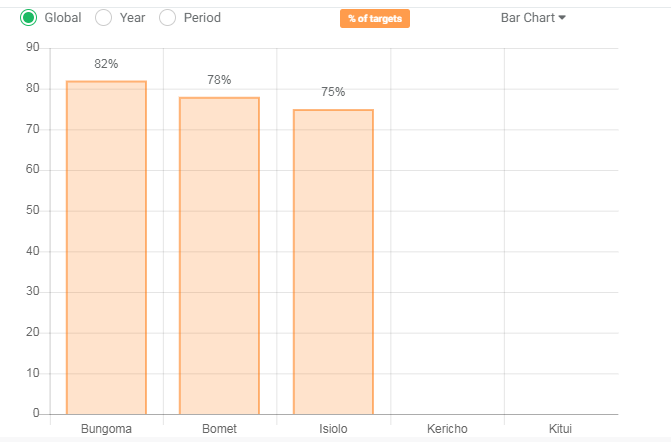
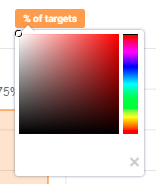
To change the color of the graph, click on the color bar at top to bring up the color picker, and select the desired color.
To change the type of graph, select it from the pick list next to the color bar. Options are Bar, Line, Donut, and Polar.
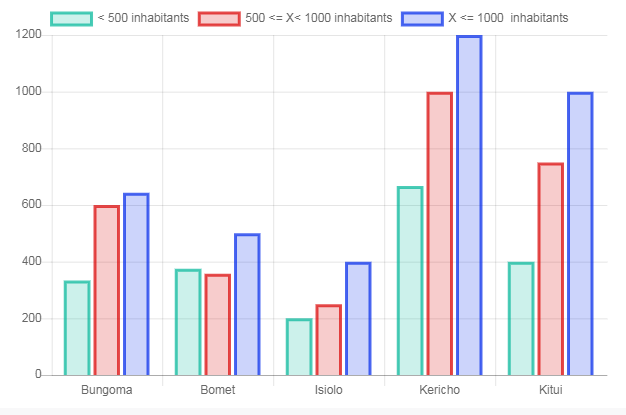
If the indicator uses disaggregation categories, you'll have the option to view disaggregated data. Each category is graphed side by side with the others for a full at-a-glance picture of the indicator's performance.
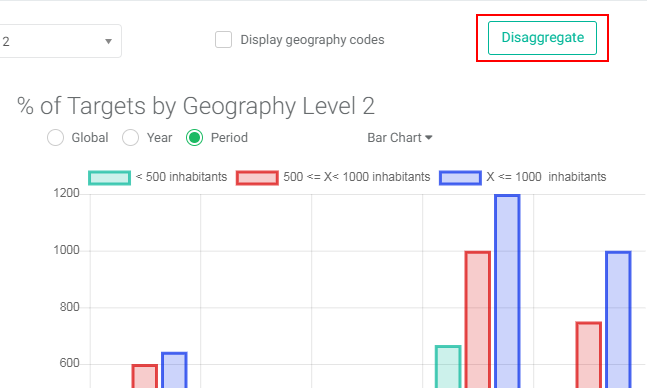
Click the Disaggregate button above the graph to select the disaggregation categories you want to filter for.
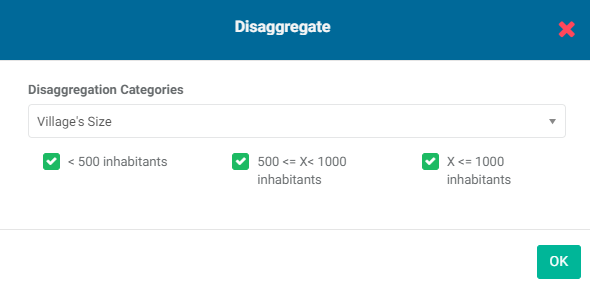
Select the categories you want to filter, and click OK when you're done. Keep in mind that the popup will look different depending on how many disaggregation categories are used by the indicator, and whether two or more categories are parallel- or cross-disaggregated.
The selected data will appear in all three panes. To restore a category, click Disaggregate again and check its box, then click OK to save your work and return to the Performance screen.
The bottom pane of the screen displays side-by-side actuals vs targets based on period and location.
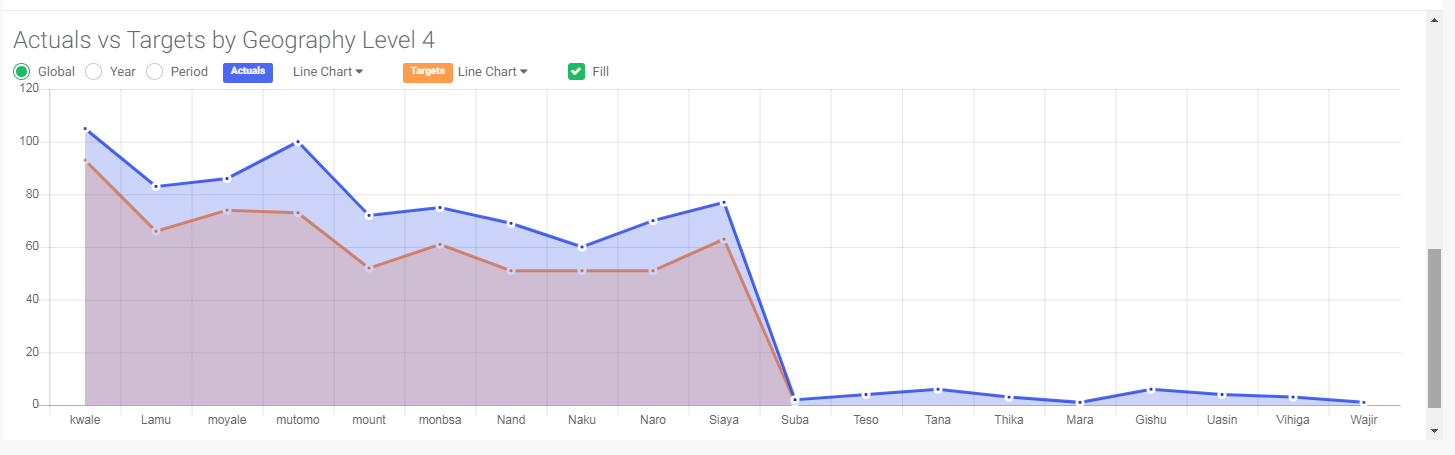
Select the desired period and geography level. Click the color bars to change the colors. The Fill checkbox fills the area under a line graph.
Export this report by clicking on the vertical More icon at top right. The options are Excel and Word formats.
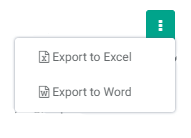
NOTE: exported reports will contain data based on your period and geography level selections.
The Indicator Progress tab displays the indicator data's trends over the lifetime of the project per location.
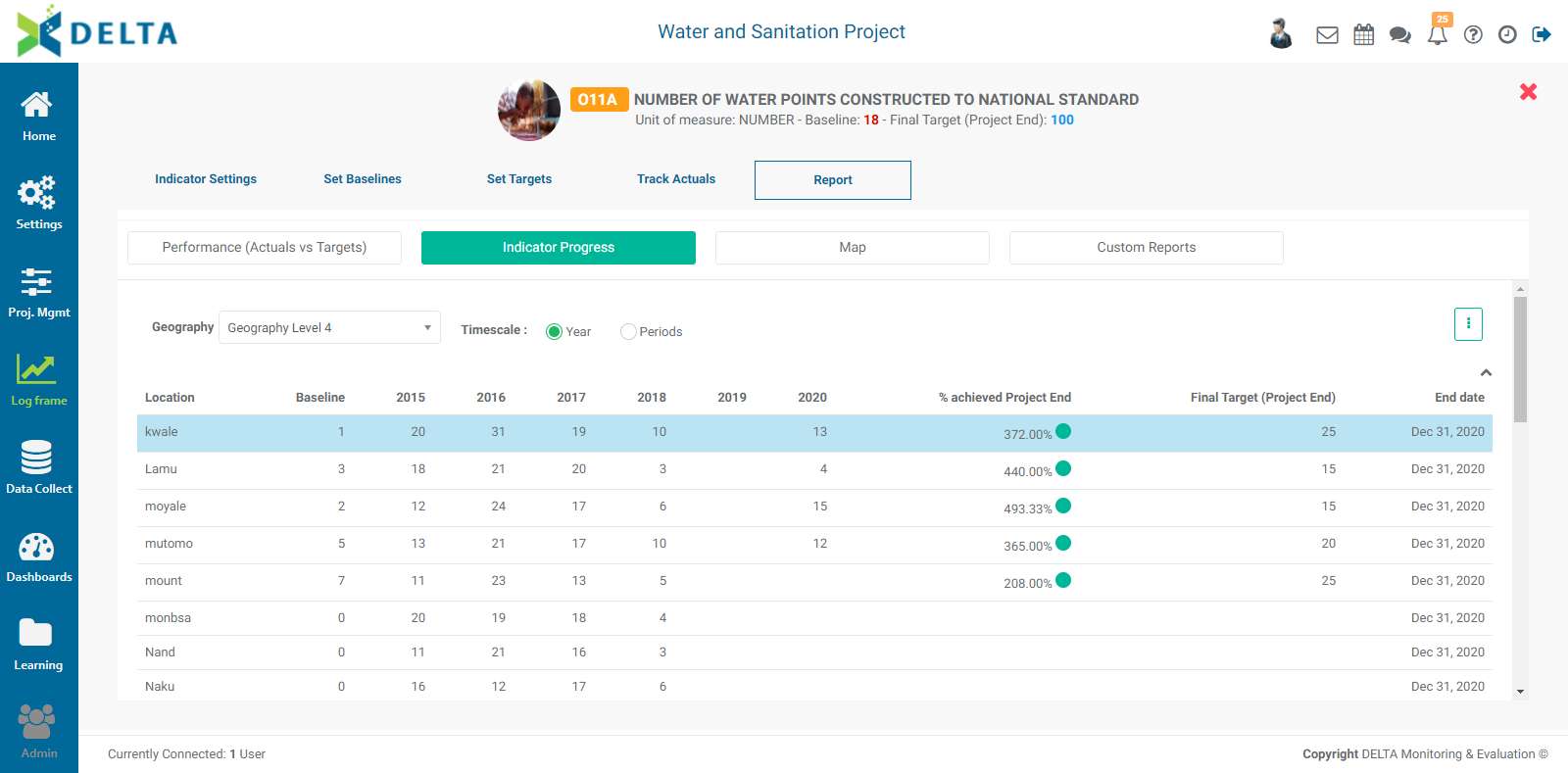
Use the Geography pick list to select the geography level. The display default when you open the tab is the geography level which was set in the indicator's definition when it was created.
The default timescale is Year. To view detailed data, select Period. The table will update itself to reflect your selections.
Select a location in the table to see its detailed information in both the table and the graph at the bottom of the page.
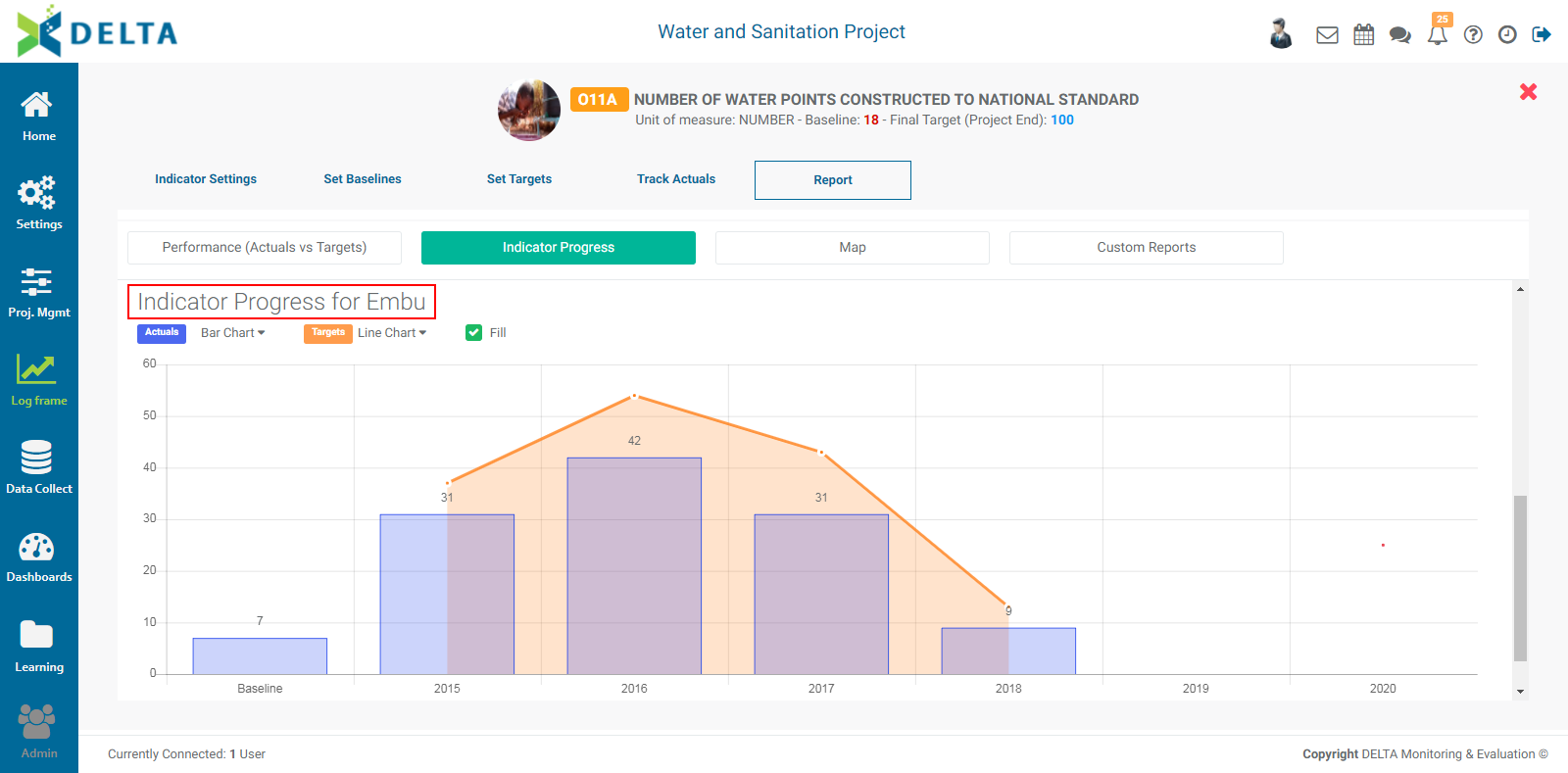
Export this report by clicking on the More icon at top right. You can export to Excel and Word formats. NOTE: the export file will reflect any options which were applied when the report is exported, such as geography levels, periods, and locations.
The third tab is Map. Indicator data will be displayed on the map in the Delta Layer according to the geography level, the period selected, and the breakdown and color coding selected in the indicator's Details > Spatial Visualization settings. Any additional GIS layers will also appear, and can be turned off by unchecking their respective boxes. You can also mouse over any part of the map data to see its information.
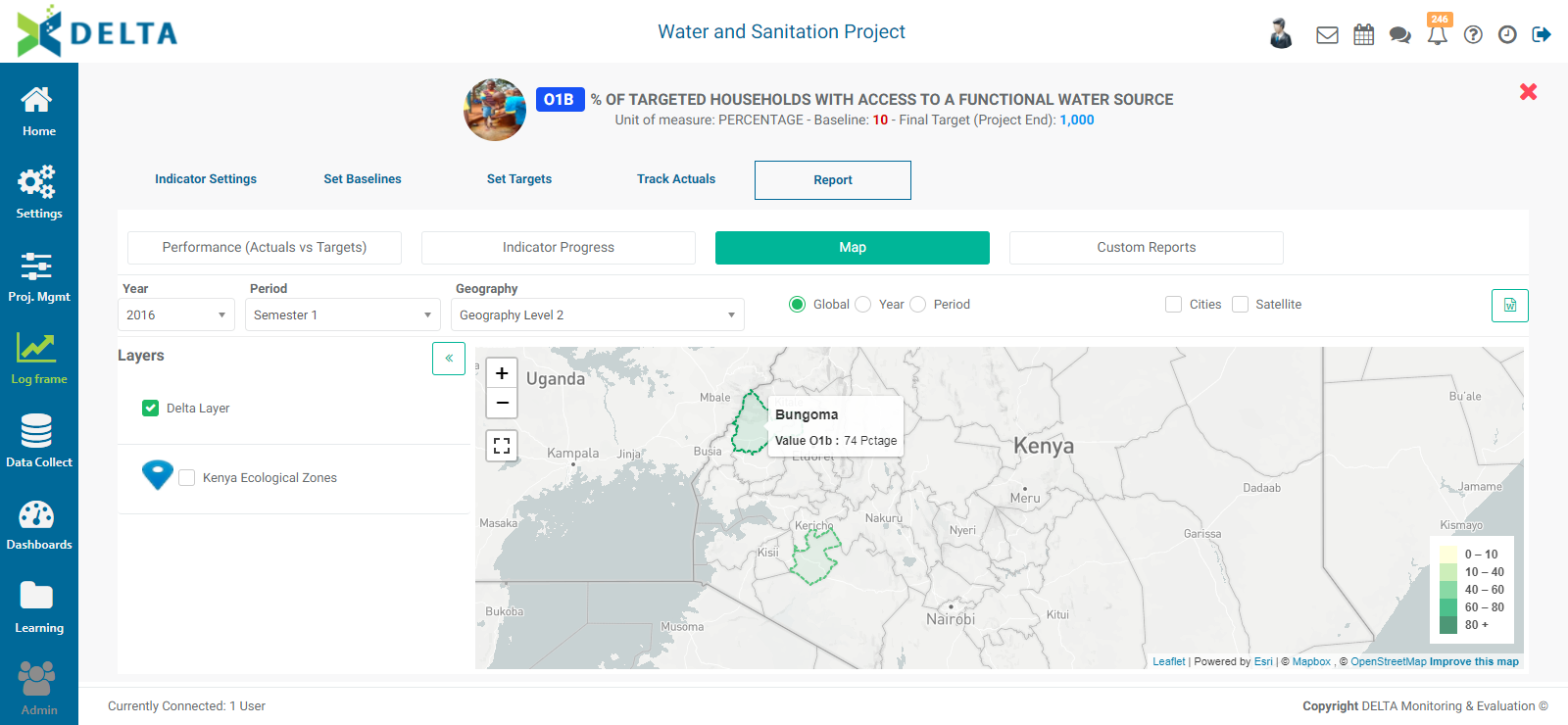
Export this dashboard by clicking on the Word icon at upper right.
Previous: Indicators: Track Actuals | Next: Indicators: Custom Reports